Use notifications
Updated October 31, 2026 · Applies to Platform ONE 1.34
Notifications tell you about what needs your attention, for example a request waiting for your approval or a change to something you own. They appear under the bell in the top bar, and can also be emailed to you.
Prerequisites
- A Platform ONE staff account.
See your notifications
-
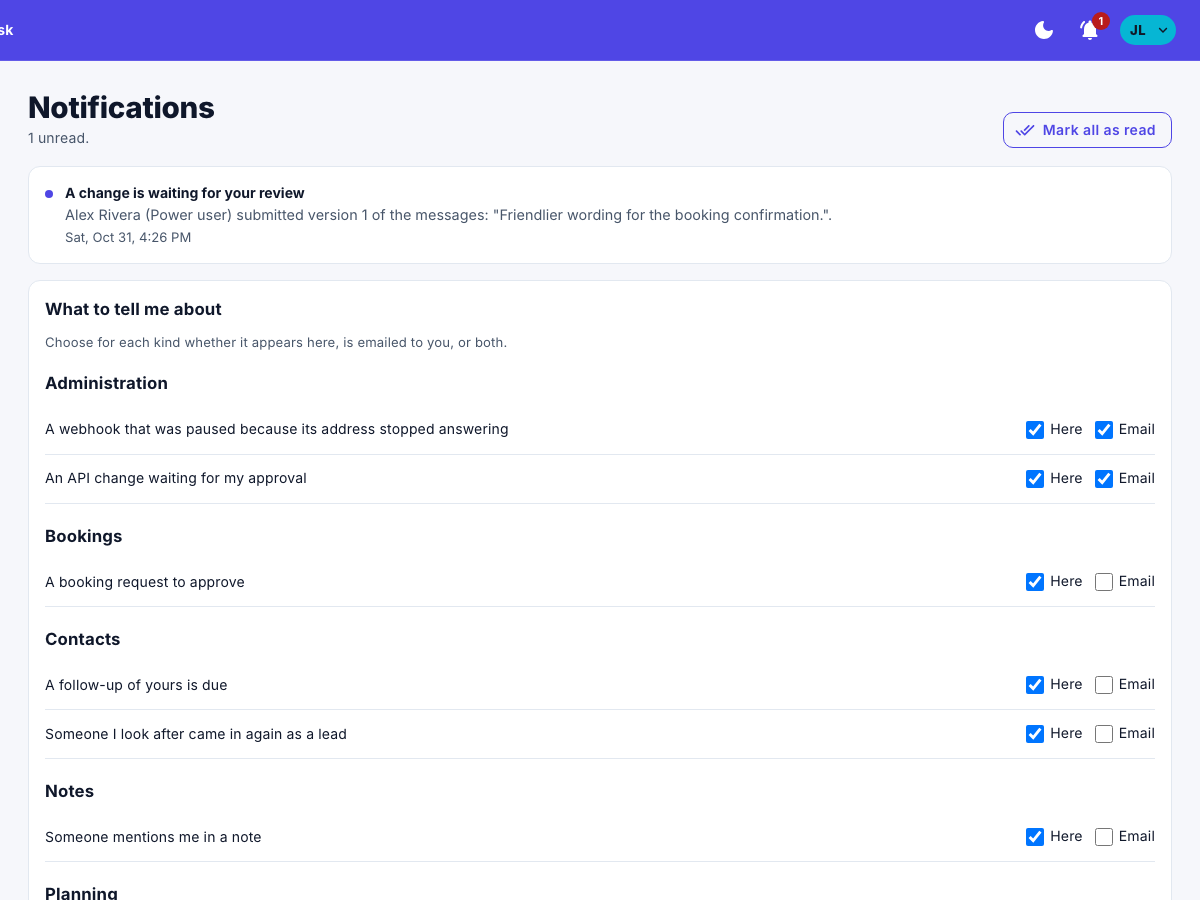
Select the bell in the top bar. A number on it shows how many you haven't read.
-
Select a notification to open what it's about. It's then marked as read.
-
To mark them all as read, select Mark all as read.
Choose what you're told about
- On Notifications, under What to tell me about, find the kind of notification.
- Select Here to see it in the app, Email to get it by email, or both. Clear both to stop it.
Your choice is saved at once. The kinds listed depend on your products and your roles.