Manage contacts
Updated October 31, 2026 · Applies to Rolodex ONE 1.34
Contacts are the people your organization deals with. Each one has an owner, who looks after them.
Prerequisites
- The Admin, Manager, Reception or Staff role.
Find a contact
-
In the menu, under Workspace, select Contacts.
-
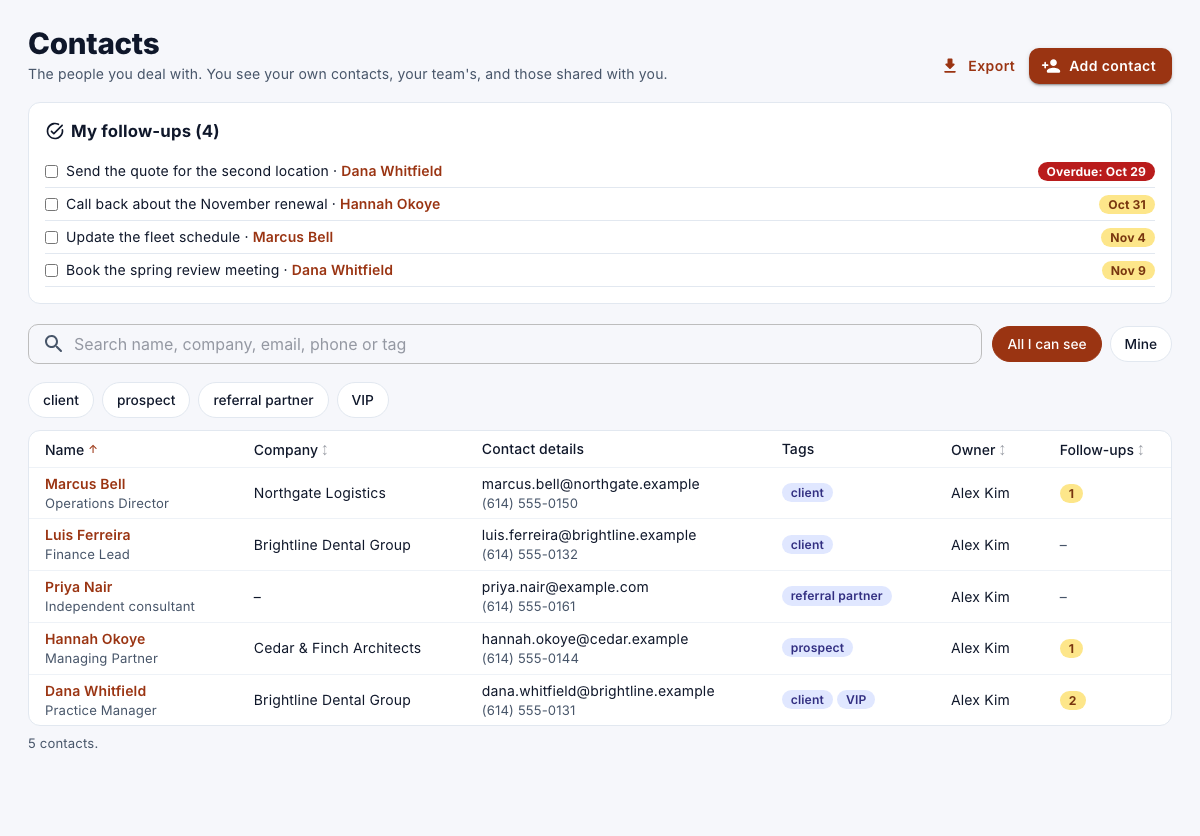
Search by name, company, email, phone or tag.
-
Choose All I can see or Mine, and sort by a column such as Name, Company, Owner or Follow-ups.
Add a contact
-
On Contacts, select Add contact.
-
Enter the following information:
Field Description First name, Last name One of them is required. Email Optional, but different from every other contact's. Phone, Job title, Address Optional. Company Their company, or No company. Tags (comma-separated) For example client, VIP.Owner Who looks after them. You, unless you choose someone else. -
Select Save.
Only you, your manager and administrators see a new contact, until you share it. Your organization's own fields appear here too.
Edit or share a contact
- To change the details, open the contact and select Edit.
- To let colleagues see and edit it, select Share, tick them, and then select Save sharing. The owner, the owner's manager and administrators can share a contact.
- To give it to someone else, change its Owner. See Change a record's owner.
Remove a contact
- Open the contact, select Remove, and then confirm.
Their details, timeline and follow-ups are deleted. Only the owner or an administrator can remove a contact.
Import and export contacts
- To download the contacts you can see, select Export on Contacts.
- Managers and administrators can select Import to add contacts from a CSV file with a header row: First name and Last name (or Name), Email, Phone, Company, Job title, Address, Tags, and your own fields by their name. A row whose email already exists is skipped. You become the owner of the imported contacts. The file can be up to 2 MB.