Set up sign-in and single sign-on
Updated October 31, 2026 · Applies to Platform ONE 1.34
People can sign in with an email and password, with single sign-on (SSO) through your identity provider, or both. With SSO, people use their work account, and their roles can come from the provider.
Prerequisites
- The Admin role.
- SSO with Microsoft Entra ID or Google needs the Professional edition. SSO with any other OpenID Connect provider needs Enterprise. See Plans and features.
- An app registration at your identity provider, with its client ID and client secret.
Add an identity provider
-
In the menu, under Administration, select Sign-in & SSO.
-
Select Add provider.
-
Choose the type: Microsoft Entra ID, Google or Other OpenID Connect.
-
Enter the following information:
Field Description Button label Shown on the sign-in page as "Sign in with …". Identifier A short name used in the provider's return address. It can't be changed later. Directory (tenant) ID Microsoft Entra ID only: from the app registration's overview. Authority / issuer URL Filled in for Microsoft Entra ID and Google. For another provider, enter its issuer address. Client (application) ID From your app registration. Client secret From your app registration. It's stored encrypted; leave it blank later to keep it. Scopes What the app asks the provider for. Role claim The claim that carries the user's roles or groups. For Microsoft Entra ID: roles or groups. -
Register the Redirect URI shown on the page with your identity provider.
-
Under Access, set the following:
Field Description Create accounts automatically on first sign-in Turn it on to create an account for someone who signs in for the first time. Otherwise, only existing users can sign in. Allowed email domains When accounts are created automatically: the domains allowed. Empty means any domain the provider signs in. Default role for new users The role of an account created at first sign-in. Role mappings (claim value=Role, one per line) Roles from the provider's claims, such as Platform-Admins=Admin.Enabled on the sign-in page Turn it on to show the provider's button. -
Select Test connection to check the provider's details, and then select Save.
The provider is live at once.
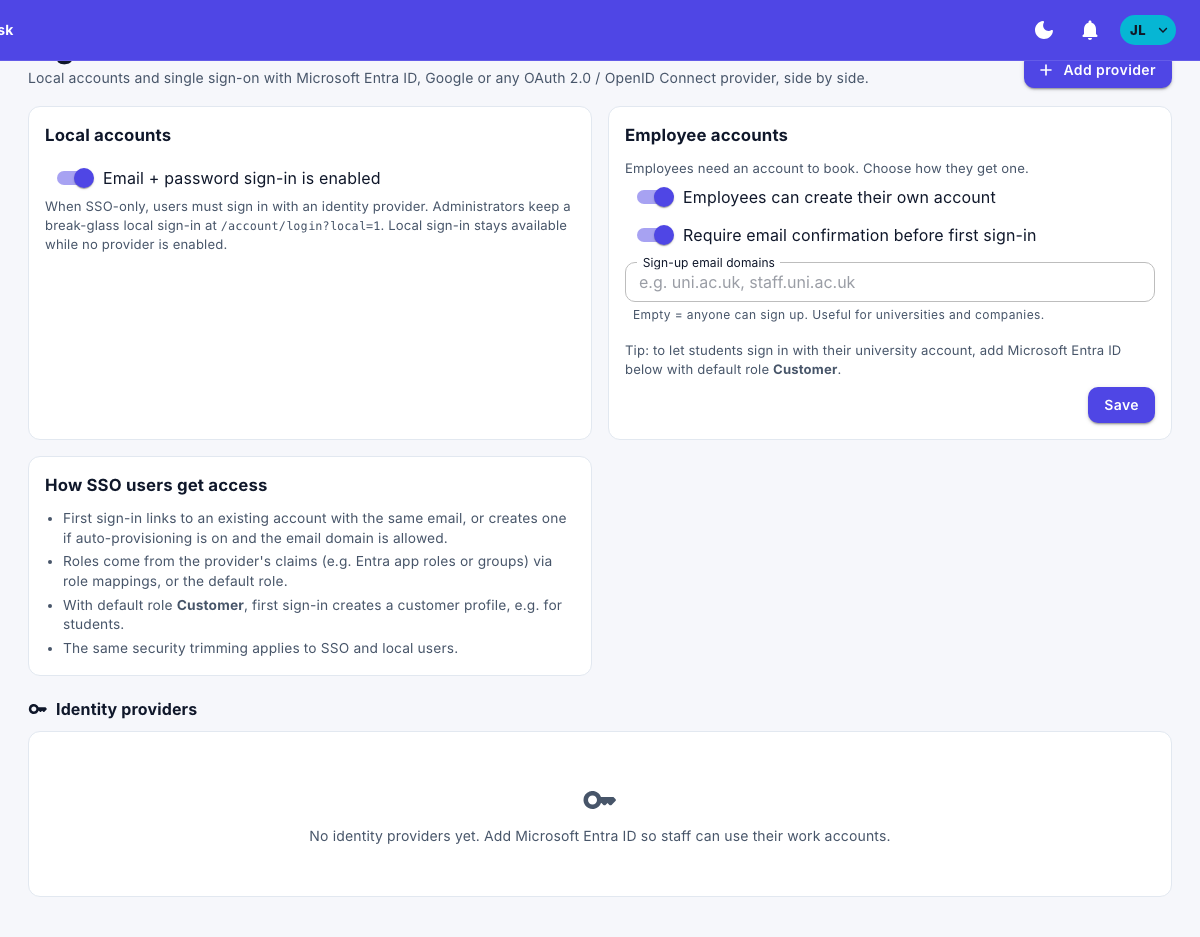
How SSO users get access
- At their first sign-in, someone is linked to an existing account with the same email, or a new account is created if automatic accounts are on and their email domain is allowed.
- Their roles come from the provider's claims, through your role mappings, or the default role.
- The same access rules apply to SSO users and to users with a password.
Allow only single sign-on
- Under Local accounts, turn off the switch.
People must then sign in with an identity provider. Administrators can still sign in with their password: the sign-in page shows Administrator sign-in for that, in case the provider is unavailable. While no provider is enabled, sign-in with a password stays available to everyone.
Remove a provider
- On the provider, select Remove, and then confirm.
Users who only sign in with that provider can no longer sign in.
Note
If your edition no longer includes SSO, your providers are kept but not offered on the sign-in page, and people sign in with their email and password.
The Customer accounts settings on this page apply to products where customers book online. They're described in those products' administrator guides.