Use the planner
Updated October 31, 2026 · Applies to Reserve ONE 1.34
The planner shows a week: a row per person or resource, with their projects, shifts, time off and bookings, and their planned hours against their working hours.
Prerequisites
- The Admin, Manager, Reception or Staff role. Planning needs the Manager or Admin role, or being the project's Project Lead or owner.
Read the planner
-
In the menu, under Workspace, select Planner.
-
Use the arrows to see the previous or next week, or select This week. Choose a location, and People or People and resources.
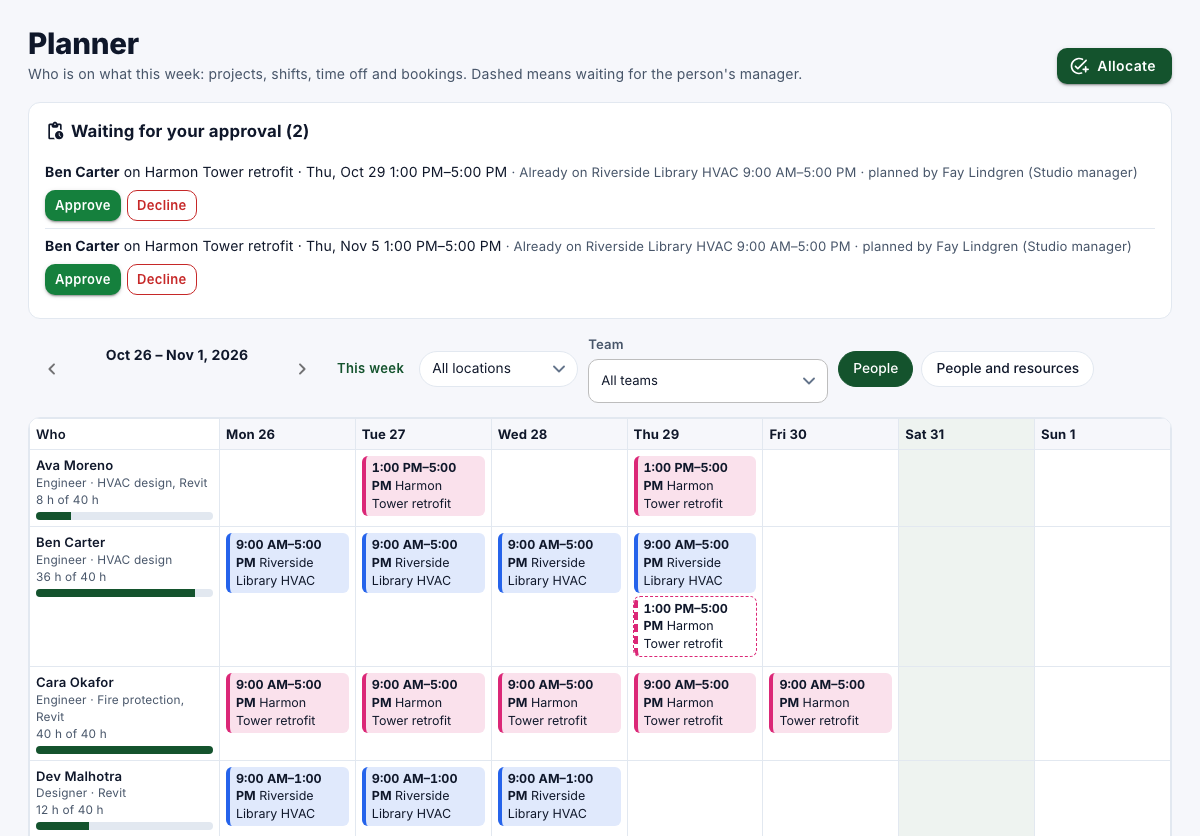
Hours are what's planned against what the person works that week, less time off. Dashed entries wait for the person's manager. Grey italics are time off. Select an entry to see it.
Plan someone
-
Select Allocate.
-
Enter the following information:
Field Description Project The project. Who The person or resource, or a suggestion: people who fit what the project still needs and are free then. From, To The period, up to a year. Start, End The time of day. Days of the week Which days. Note (optional) Type @to mention a colleague. -
Check what the dialog finds for each day, and then select Allocate.
What happens on each day:
| Found | Result |
|---|---|
| Nothing in the way | Planned. |
| Approved time off | Not planned on that day. |
| Other work at the same time, or time outside working hours | Waits for the person's manager (Professional), unless you're their manager. |
| Bookings | A warning only. |
Approve what waits for you
Allocations of people you manage that put them over capacity are listed under Waiting for your approval, with the reason.
- Select Approve or Decline.
Remove an entry
- Select the entry, and then select Remove from the plan.
You can remove what you planned, and planners can remove anything on projects they plan.