Book a loading bay
Updated October 31, 2026 · Applies to BayCheck ONE 1.34
This article is for carriers and drivers who book a bay with a warehouse or yard that uses BayCheck ONE.
Prerequisites
- An account on the site's booking page. Select Create an account there if you don't have one.
Book a bay
-
Sign in on the booking page, and then select Book an appointment.
-
Choose the site, and what you're coming for, such as an inbound delivery or a pickup.
-
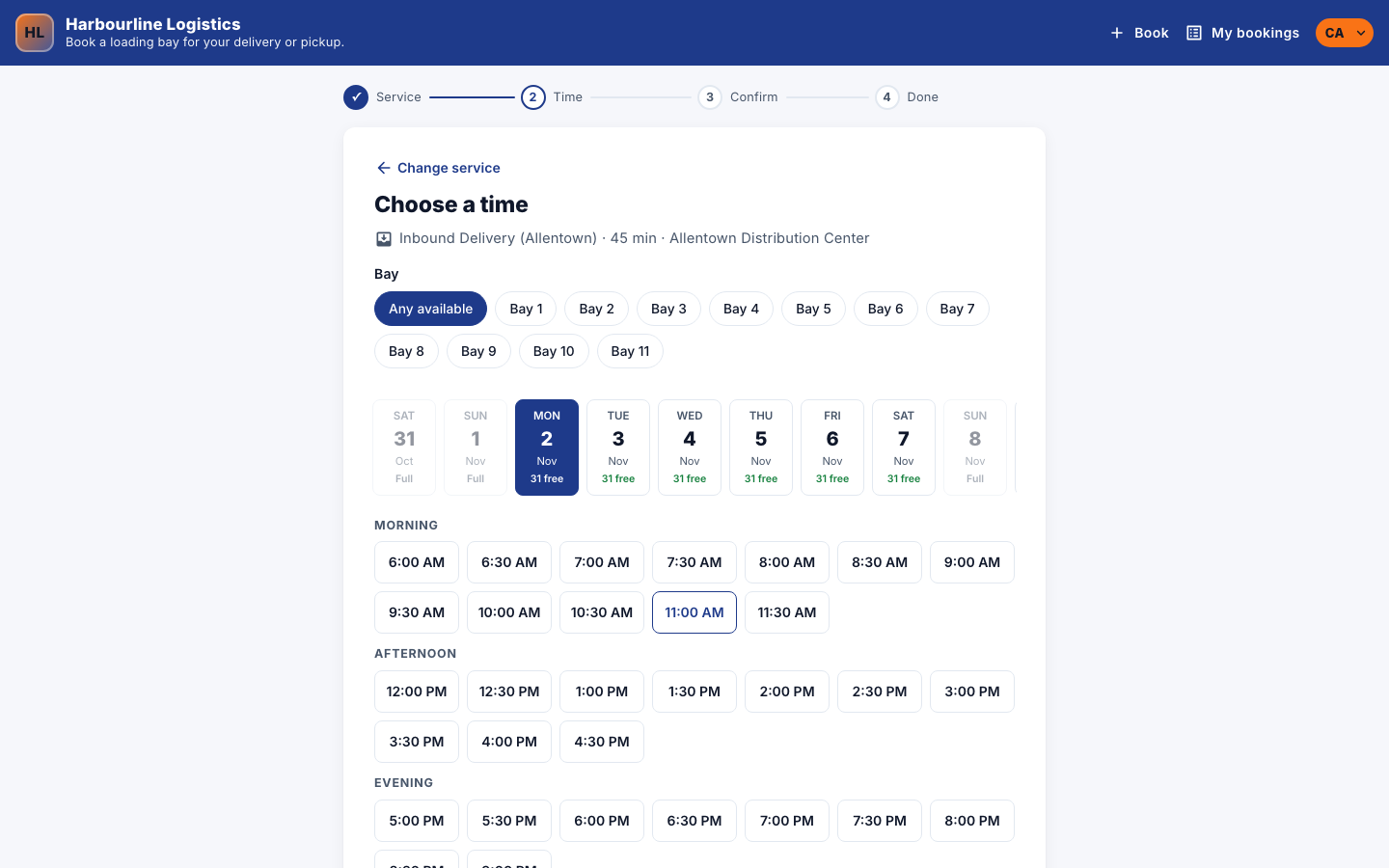
If you're offered a choice of bay, choose one, or Any available. Only bays that fit your load are offered.
-
Choose a time.
-
Answer the questions, such as your carrier, truck license plate and load details.
-
Select Confirm booking. For some loads, such as hazardous goods, select Send booking request: the site checks it first and emails you when it's confirmed.
The confirmation names the bay. To change or cancel the booking, open it from My bookings.
Check yourself in
From an hour before your slot:
- Open the booking from My bookings or the link in your email.
- Select I've arrived.
You're checked in, and told to wait in the yard until the gate sends you to your bay. Self check-in needs the site's Professional edition; otherwise, check in at the gate.