Change the wording of messages
Updated October 31, 2026 · Applies to Platform ONE 1.34
With Messages in Studio, you change the wording of the emails and notifications the app sends, such as a booking confirmation or a reminder about a follow-up. Each message has a default wording, which applies until you change it.
Prerequisites
- The Admin or Designer role.
- The Professional edition. See Plans and features.
Change a message
-
In the menu, under Extend, select Studio.
-
On Messages, select Edit messages, or Continue editing if a draft is already open.
-
Choose the message from the list. Messages you've changed are marked Changed.
-
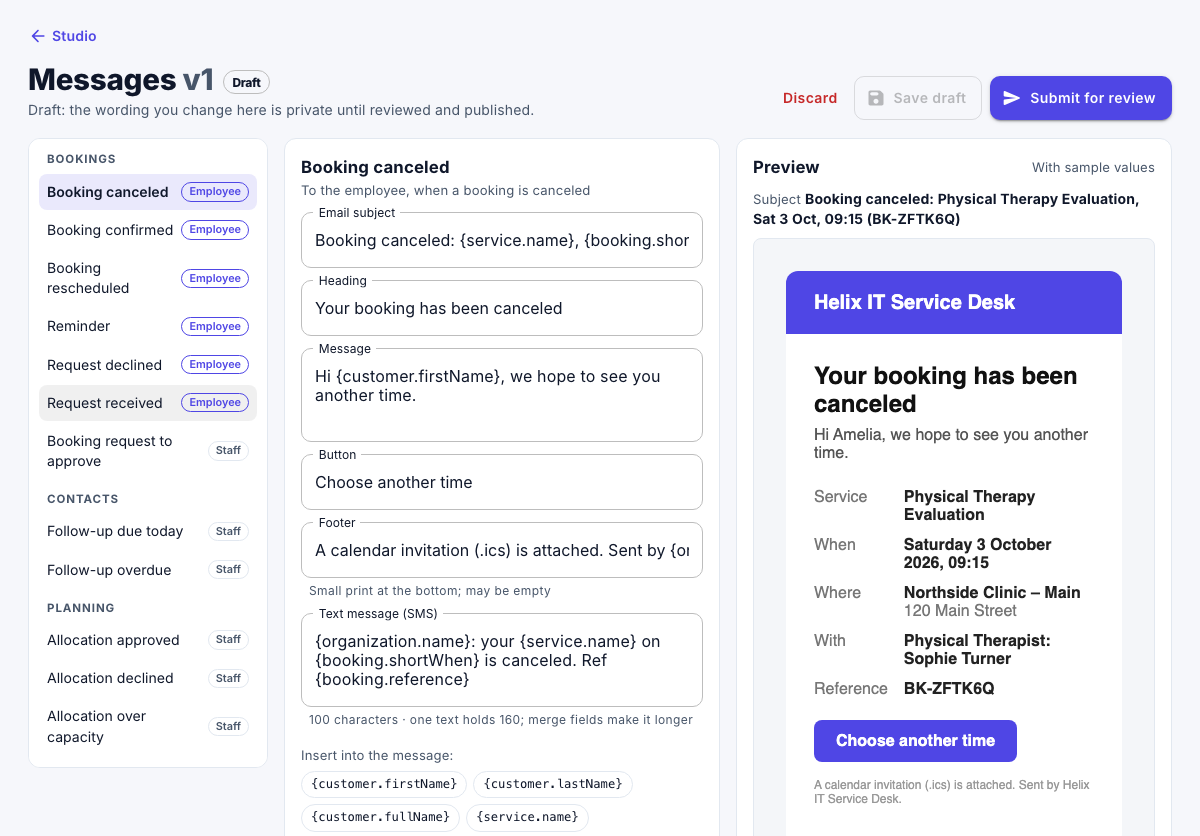
Change its parts, such as the subject, heading, text and button. To insert a placeholder, such as the customer's name, click in the text and select the placeholder.
-
Check the Preview, which uses sample values. It shows the email and how the message looks in the notification bell.
-
Enter a Change note for reviewers, select Save draft, and then select Submit for review.
To go back to the default wording of a part, select Reset to default.
Note
Messages also have a text message part. Text messages aren't sent yet, so that wording is kept for later.