Manage appointments
Updated October 31, 2026 · Applies to BookIt ONE 1.34
You find appointments on Bookings, Calendar or Today, and open one to work on it.
Prerequisites
- The Admin, Manager, Reception or Staff role. Staff see only their own appointments.
Find appointments
-
In the menu, under Workspace, select Bookings.
-
Choose Needs approval, Upcoming, Today, Past 30 days or All, and a status.
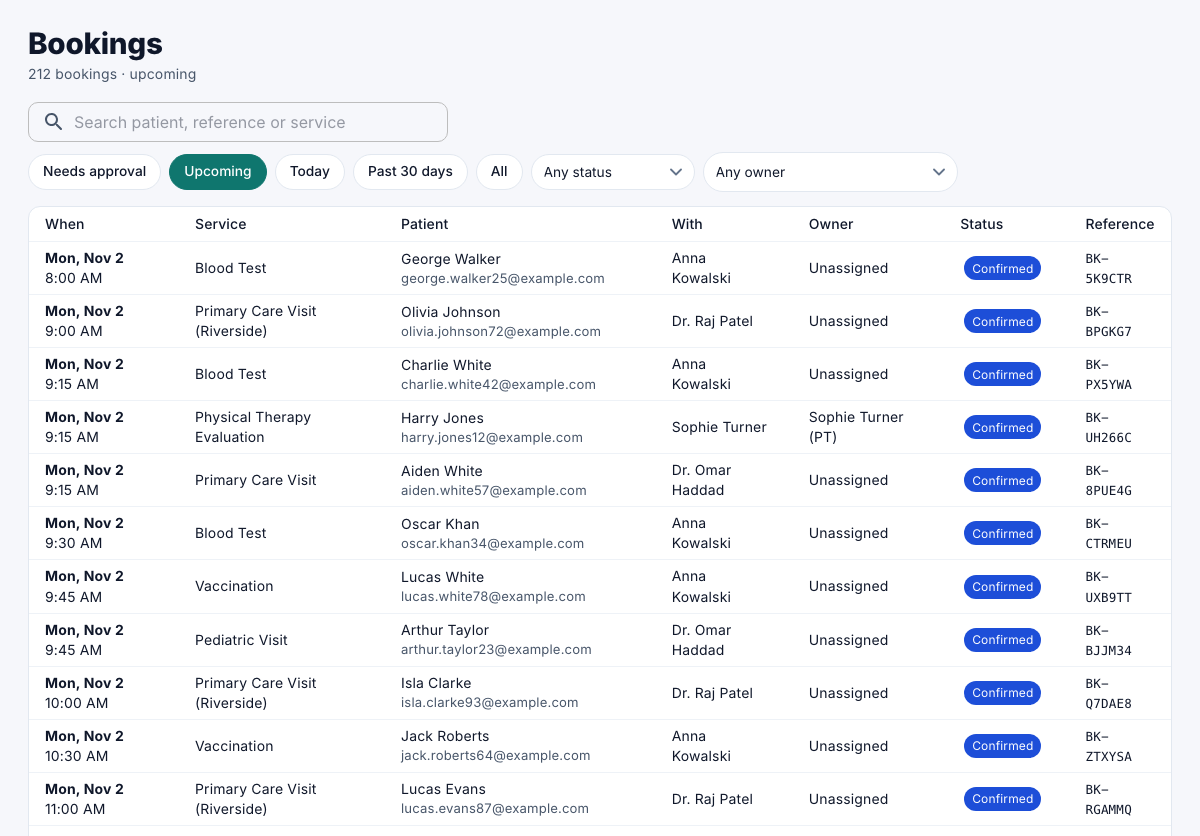
Select an appointment to open it. It shows the time, the customer, the staff and resources, the answers to the booking form, the booking details, and who booked it.
Check in, complete or mark a no-show
On a confirmed appointment:
| Button | When |
|---|---|
| Check in | The customer has arrived. |
| Complete | The appointment is done. |
| No-show | The customer didn't come. Available from an hour before the start. |
Record booking details
What staff record on an appointment, such as visit notes, goes under Booking details. Customers never see it.
- Under Booking details, select the edit button, fill in the fields, and then select Save details.
Reschedule or cancel
Managers, receptionists and administrators can change confirmed appointments.
- Select Reschedule, and pick a new time, or another staff member or resource for the same time. Times when someone is off, or has asked to be off, aren't offered.
- Check the change, and then select Confirm change.
To cancel, select Cancel booking. The customer is notified either way.
Approve or decline a request
A request for a service that needs approval holds the time until someone decides. Requests are on Bookings under Needs approval, and in the banner on Today.
- Open the request.
- Do one of the following:
- Select Approve. The customer is sent the confirmation.
- Select Decline, enter the Reason for the customer, and then select Decline request. The customer is told, and the time is free again.
- Select Change time to approve it at another time.
Unanswered requests are released after the time your administrator set.