Design the booking form
Updated October 31, 2026 · Applies to BookIt ONE 1.34
The booking form adds your own questions to the booking page, after name, email and phone. The booking details form is what staff record on an appointment, such as visit notes; customers never see it. Both are designed in Studio and reviewed before they go live.
Prerequisites
- The Admin or Designer role.
- The Professional edition, for Studio. See Plans and features.
Add questions
-
In the menu, under Extend, select Studio.
-
On Booking form (or Booking details form), select Create form, Edit form or Continue editing.
-
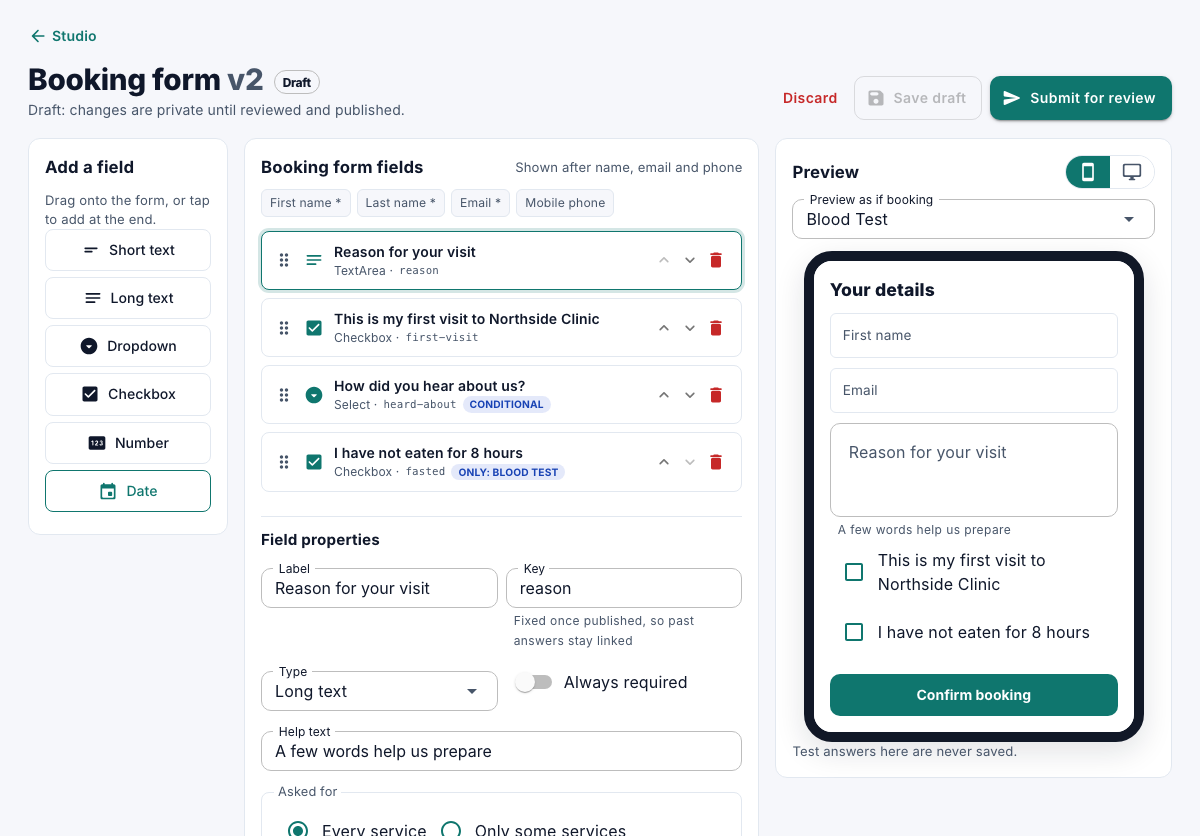
Under Add a field, drag a field onto the form, or tap it to add it at the end.
-
Select the field, and set its Label, Type, Help text, Options (one per line) for a choice, and Always required.
-
Under Asked for, choose Every service or Only some services.
Add rules
A rule says: when a condition holds, do something. Conditions can look at the Service, an Answer to a question, the customer, a Service detail, the Location, the Day, the Time or how far ahead it's booked.
-
Under Rules, select the add button.
-
Set the condition, and then the action after THEN:
Action What it does Show field / Hide field Shows or hides a question. Make required Makes a question required. Show a message Shows a message to the customer. Needs approval Holds the booking as a request (booking form only). Block booking Stops the booking (booking form only).
Publish
Enter a change note, select Save draft, and then select Submit for review. See Review and publish Studio changes. To see the live page, select See live booking page in Studio.