Quickstart: Set up your organization
Updated October 31, 2026 · Applies to Platform ONE 1.34
In this quickstart, you prepare your new workspace: you set the time zone and your branding, add your locations and people, and give your first colleagues an account. It takes about 15 minutes. Then you set up each of your products from its own administrator guide.
Prerequisites
- The administrator account that ONEConsult.NET Ltd. created for you.
Set the time zone and date format
-
In the menu, under Administration, select Organization.
-
Under Time and dates, choose your Time zone and how Dates and times are written.
-
Select Save changes.
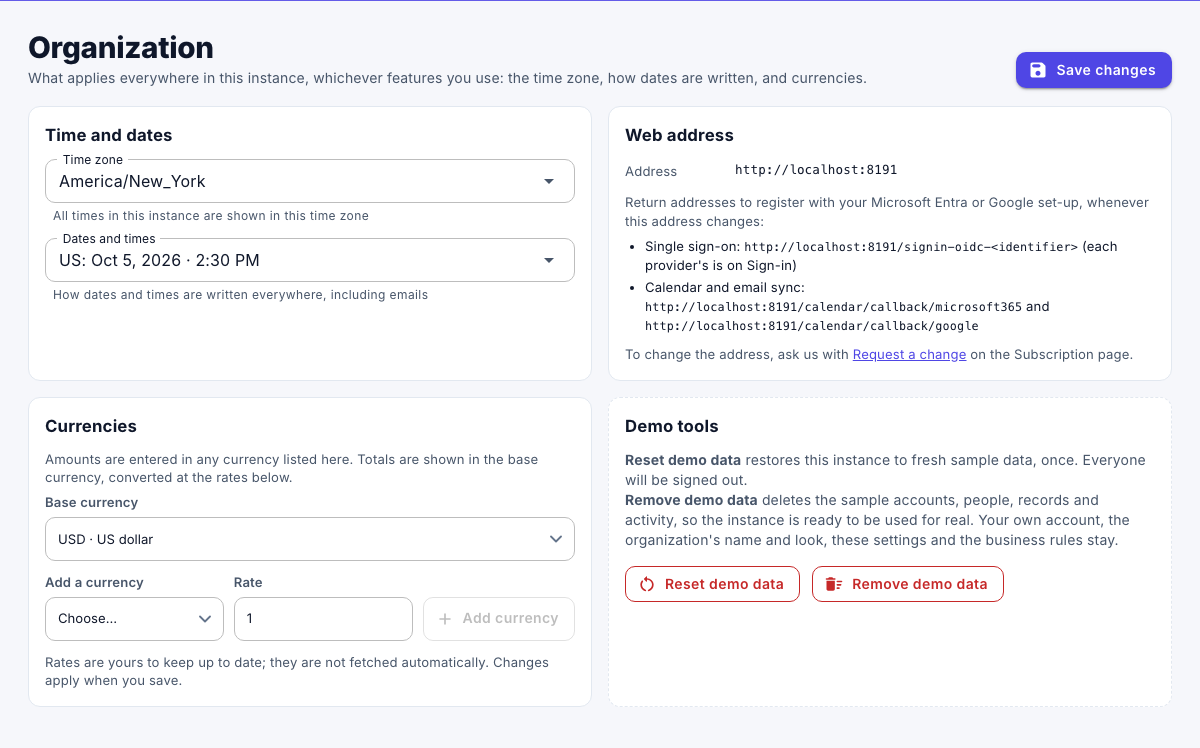
For details, see Set up your organization's time zone and currencies.
Add your branding
- Under Administration, select Branding.
- Enter your Organization name, Tagline and Logo initials, and choose your colors.
- Select Save changes.
For details, see Customize branding.
Add your locations
- Under Administration, select Locations.
- Select Add location, enter its name and address, and then select Save.
For details, see Manage locations.
Add your people and teams
- Under Administration, select Teams, and add your departments and teams.
- Under Administration, select People, and add everyone who works for you, with their location, team and who they report to.
For details, see Manage people and Manage teams.
Give your colleagues an account
- Under Administration, select Staff users & roles.
- Select Add user, enter their name and email, choose their roles, and enter an initial password.
- Select Save, and then give them the password yourself. Platform ONE doesn't send an invitation email.
- Under Administration, select People, and link each person to their account in the Account field.
For details, see Manage users and roles.