Set up services
Updated October 31, 2026 · Applies to BookIt ONE 1.34
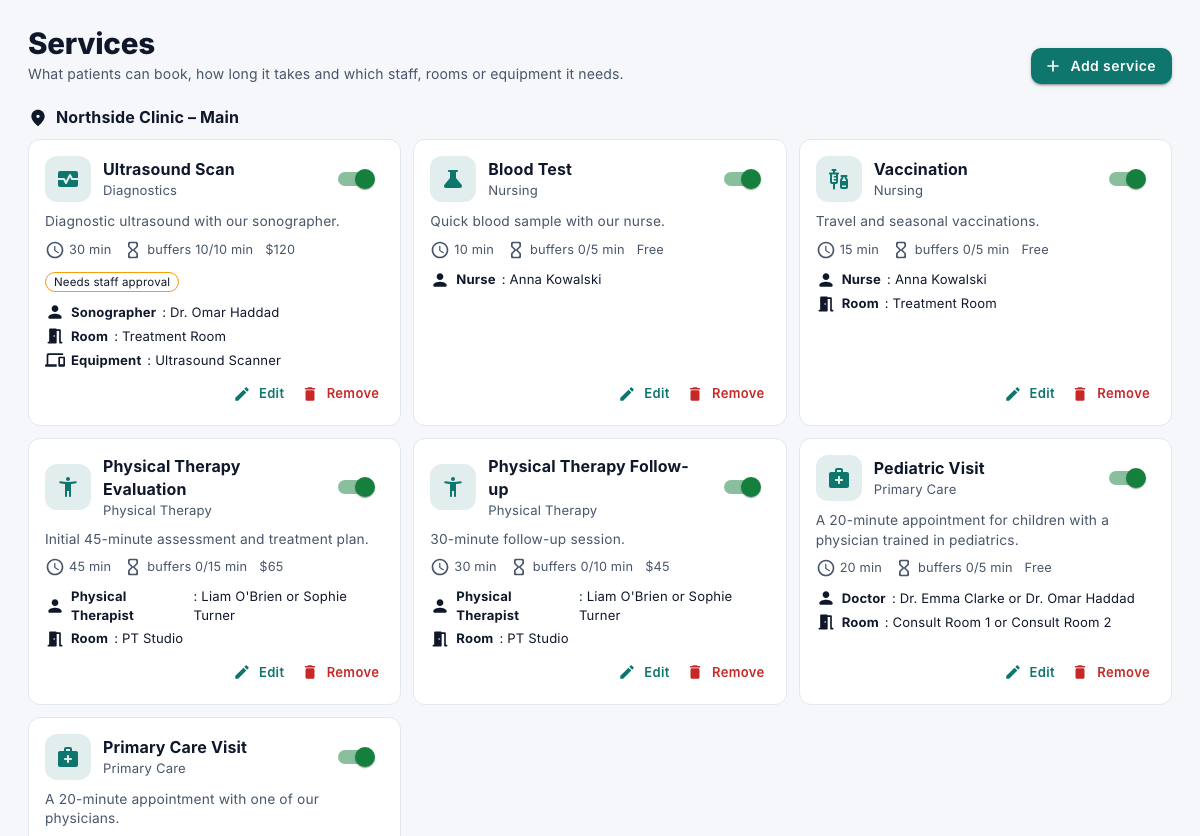
A service is what customers book, such as a consultation or a repair: how long it takes, what it costs, and which staff, rooms or equipment it needs.
Prerequisites
- The Admin role.
- The staff and resources the service needs. See Set up staff and resources.
- Online appointments with Teams or Meet links need the Professional edition, and calendar sync.
Add a service
-
In the menu, under Administration, select Services, and then select Add service.
-
Under Details, enter the following information:
Field Description Name Required. Description Shown to customers on the booking page. Category Groups services on the booking page. Icon Shown with the service. Location Where it takes place. Price (0 = free) and Currency What it costs. Duration (minutes) 5 to 720. Buffer before, Buffer after Time kept free around it, in minutes. Bookable online Turn off to hide it from the booking page. Staff can still book it. Online bookings need staff approval The time is held as a request until reception, a manager or an administrator approves it. Bookings made by staff are confirmed at once. Held online (Teams or Google Meet) The staff member's connected calendar creates a meeting link; the customer is sent a link to join. -
Under What this service needs, select Add requirement for each thing that must be free at the same time, such as a doctor and a room:
Field Description Label For example "Doctor" or "Room". Type Staff, or a kind of resource. Any of The staff or resources that can fill it. Needs skills Only those with these skills are offered. Customer picks Lets the customer choose who or which. Only one requirement per service. -
Select Save.
Your organization's own service fields, designed in Studio, appear in the editor too.
Hide or remove a service
- To hide it from the booking page, turn off its switch. It shows Hidden from booking page.
- To remove it, select Remove. A service with past appointments is archived to keep their history.