Set up shift types and rotations
Updated October 31, 2026 · Applies to Reserve ONE 1.34
A shift type is a shift your organization runs, such as Early or Night, with the minimum cover it needs. A rotation is a repeating pattern of who works which shift, which fills the weeks ahead by itself.
Prerequisites
- The Manager or Admin role.
- The Professional edition of Reserve ONE. See Plans and features.
Add a shift type
-
In the menu, under Workspace, select Shifts, and choose the location.
-
Select Add shift type.
-
Enter the following information:
Field Description Name For example "Early". Starts, Ends A shift that ends before it starts runs past midnight. Color Its color on the pages. Minimum cover For each Role: the number of People, and optionally With skills. Select Add a role for more. In use Turn off to stop using it. -
Select Save.
To change one, select Edit on the shift type.
Set up a rotation
-
On Shifts, select Rotations.
-
In Rotation, choose New rotation, and enter its Name and how often it Repeats every (weeks): 1 to 8.
-
Under Pattern, add a line for each shift: the Week, Day, Shift and Who.
-
Select Save rotation.
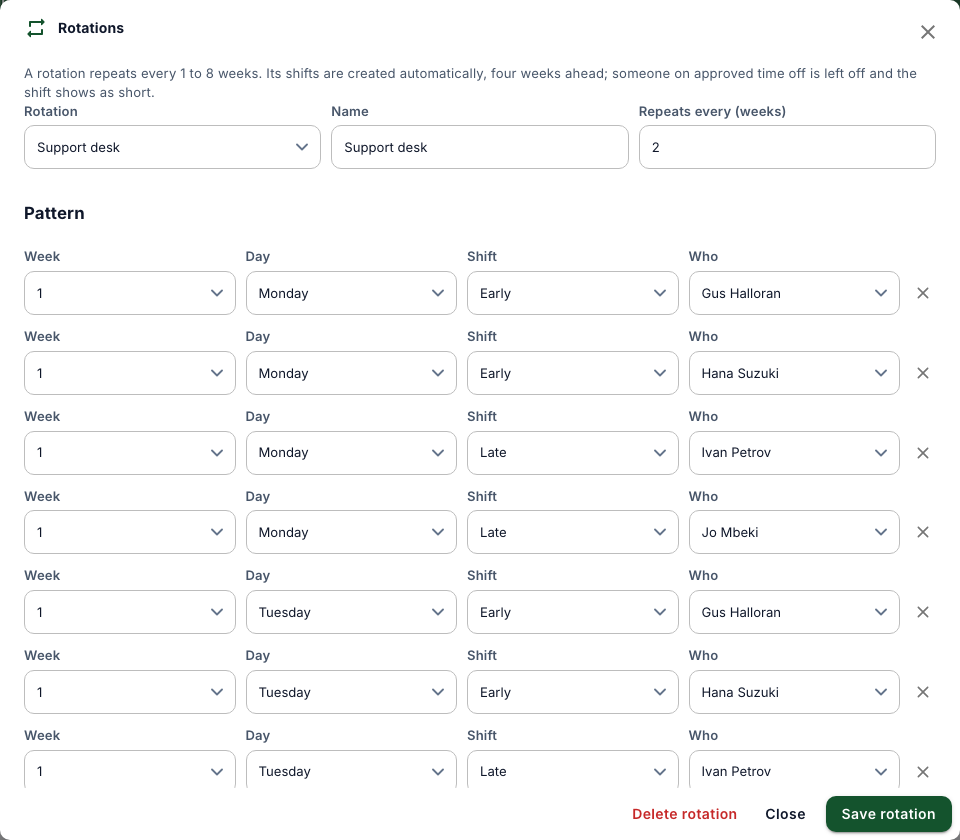
Its shifts are created automatically, four weeks ahead. Someone on approved time off is left off, and the shift shows as short. To delete a rotation, select Delete rotation; shifts already created stay.