Manage users and roles
Updated October 31, 2026 · Applies to Platform ONE 1.34
A user is an account that someone on your staff signs in with. Each user has one or more roles, which decide what they see and can do. Customer accounts aren't managed here; each product that has customers explains how they get an account.
Prerequisites
- The Admin role.
Roles
A person with several roles gets the combined access of all of them. Access is checked by the app for every request, not only hidden on the screen.
| Role | What it's for |
|---|---|
| Admin | Everything, including the Administration pages and publishing in Studio. |
| Manager | Runs the day-to-day work and sees reports, for one location or all of them. |
| Reception | Front desk: finds and creates customers and works on their behalf, for one location or all of them. |
| Staff | Their own work only. |
| Designer | Studio only: builds and submits changes, but can't approve or publish them. |
What each role can do in a product is described in that product's guide. For a list of the pages each role sees, see Permissions.
Note
The Staff users & roles page describes each role in terms of bookings and appointments, whatever your products are. The roles work the same way in every product.
Add a user
-
In the menu, under Administration, select Staff users & roles.
-
Select Add user.
-
Enter the following information:
Field Description Name Required. Email (sign-in name) Required, and not used by another user. Roles Choose one or more. Location (manager / reception) Shown for the Manager and Reception roles without Admin. Limits them to one location, or All locations. Staff member in the calendar Shown for the Staff role in products with a calendar of staff and resources. With only the Staff role, they see just this person's work. Initial password At least 8 characters. Leave it empty for users who only sign in with single sign-on. -
Select Save.
Important
Platform ONE doesn't send an invitation email. Give new users their initial password yourself, and ask them to change it after they sign in. Users who sign in with single sign-on don't need a password.
Then link the user to their entry on the People page, so approvals and visibility follow your organization chart. See Manage people.
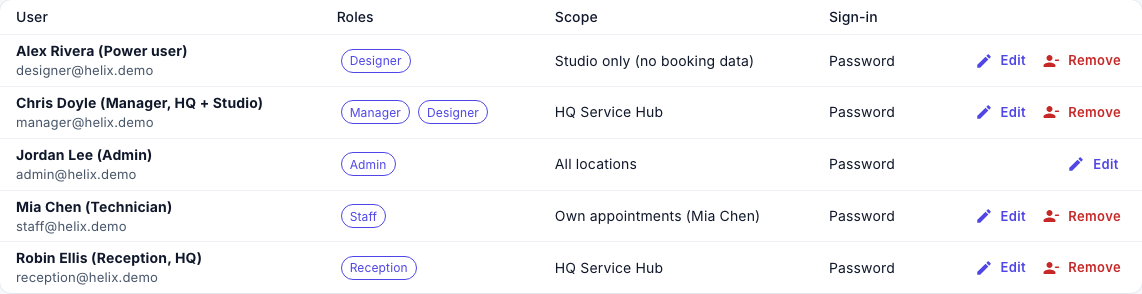
The Scope column shows each user's effective access, and Sign-in shows how they last signed in, or No sign-in yet.
Change a user
- On the user's row, select Edit.
- Change their details or roles. To set a new password, enter it under Password; leave it empty to keep the current one.
- Select Save.
You can't remove your own Admin role, and there must always be at least one Admin.
Remove a user
- On the user's row, select Remove, and then select Remove to confirm.
They can no longer sign in. Their records and history aren't affected. If they still own records, a message offers Move them, which opens Record ownership. You can't remove your own account.