Automate work with workflows
Updated October 31, 2026 · Applies to Platform ONE 1.34
A workflow says: when this happens, and these conditions hold, do these things in order. For example, when a deal is won, email the account team; or every Monday at 08:00, notify the managers. Workflows are reviewed and published like the rest of Studio, so nothing runs from a draft.
Prerequisites
- The Admin or Designer role.
- The Professional edition. See Plans and features.
Create a workflow
-
In the menu, under Extend, select Studio.
-
On Workflows, select Edit workflows, or Continue editing if a draft is already open.
-
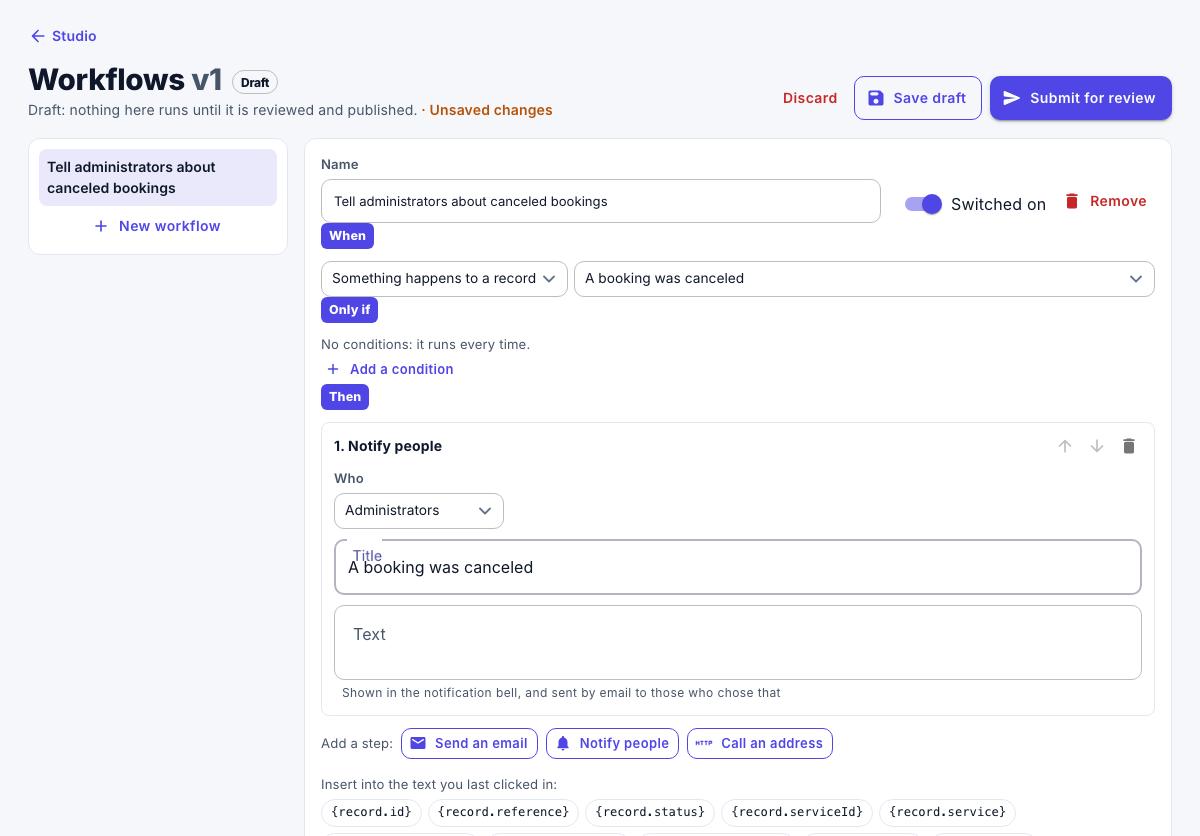
Select New workflow, and enter its Name.
-
Under When, choose what starts it:
- Something happens to a record, and then the event, such as a booking that was canceled. The events listed are the ones your products have.
- At a set time, and then the time of day, daily or on chosen weekdays, in your organization's time zone.
-
Under Only if, add the conditions that must hold, on the record's fields, including your own fields. Choose whether all of these hold or any of these holds. Without conditions, it runs every time. A workflow at a set time isn't about a record, so it has no conditions.
-
Under Then, add the steps. They run from top to bottom:
Step What it does Send an email Sends an email To an address, or to a field of the record such as its email. Notify people Shows a notification in the app to Administrators, Managers, One person, or the person in a field of the record, such as its owner. Call an address Calls an https://address of yours with the workflow, what happened and the record.Change a field Sets a field of the record to a new value. Available on records the API can change, such as customers, contacts, companies, deals and projects. -
Check that Switched on is on.
-
Enter a Change note for reviewers, select Save draft, and then select Submit for review.
The workflow runs once it's published. See Review and publish Studio changes.
Limits
- Up to 50 workflows, each with up to 10 conditions and 10 steps.
- A workflow runs at most 500 times an hour.
- A change made by a workflow doesn't start another workflow.
- Addresses inside a private network are refused.
- Nothing runs while your subscription is read-only or suspended.
Follow the runs
- In Studio, select Workflow runs.
The page lists every run of the last 30 days, newest first, with what started it and the result of each step. Choose a Workflow, or turn on Failed only, to narrow the list.
A call to an address that gets no answer, or a server error, is tried again after 1, 5 and 15 minutes. After that, or on any other failure, the run fails and administrators are told, once a day per workflow. Select Run again to carry on from the step that failed; the steps before it aren't repeated.