Manage holidays
Updated October 31, 2026 · Applies to Platform ONE 1.34
Public holidays apply in every product: they aren't counted as leave, no bookings are offered on them, and there's no capacity to plan. A holiday can apply to all locations or to one.
Prerequisites
- The Admin role.
Add a holiday
-
In the menu, under Administration, select Holidays.
-
Under Add a holiday, enter the following information:
Field Description Name Required. Date Required. Where All locations, or one location. Same date every year Select it for a holiday on a fixed date, such as January 1. Open for bookings Select it if bookings can still be made on that day. -
Select Add holiday.
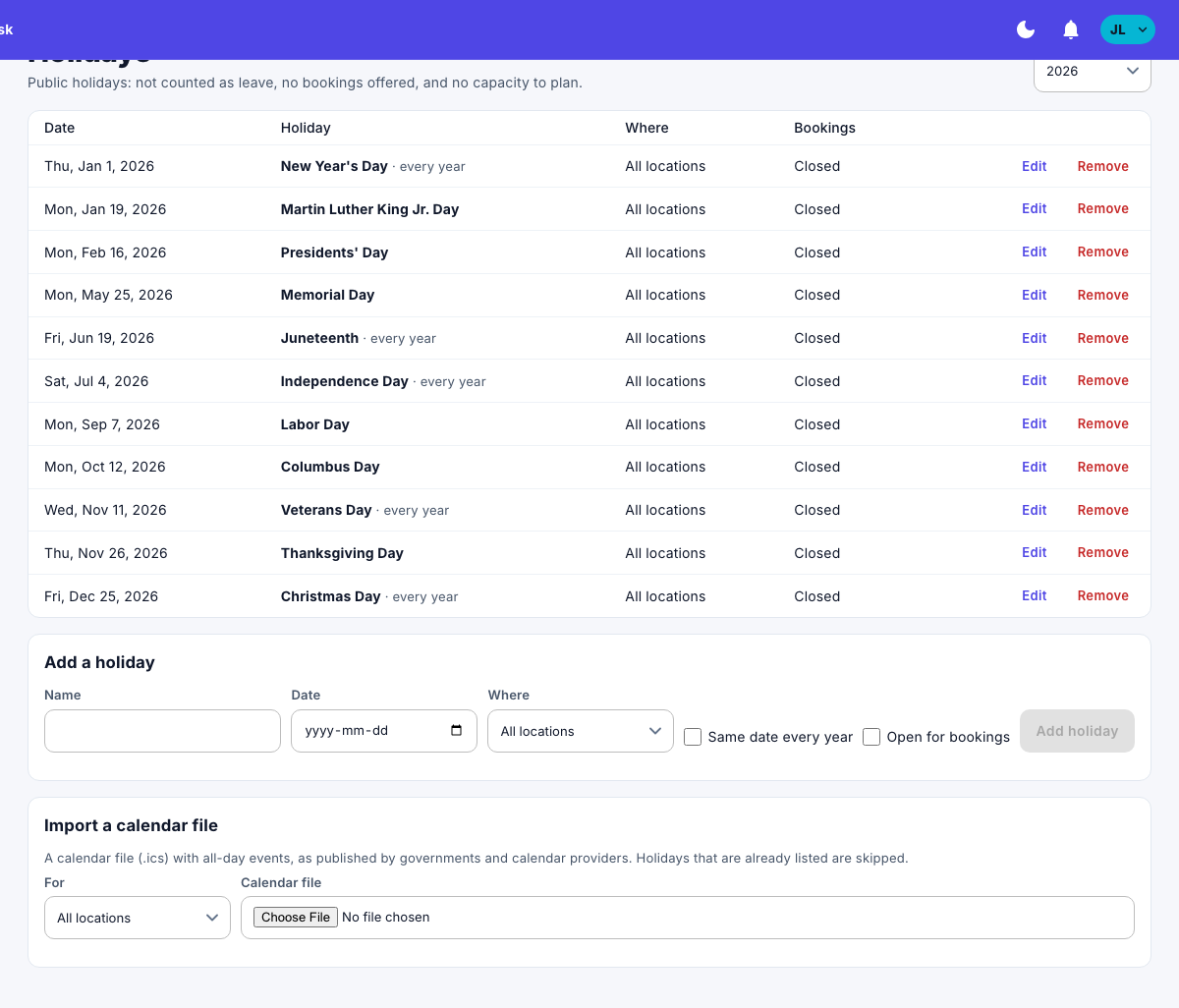
The list shows one year at a time. Choose another Year to see it.
Import holidays from a calendar file
Governments and calendar providers publish holiday calendars as calendar files (.ics).
- Under Import a calendar file, choose who it's For: All locations, or one location.
- Under Calendar file, choose the file.
The all-day events in the file are added as holidays. Holidays that are already listed are skipped. A file can have up to 2,000 events.
Change or remove a holiday
- To change one, select Edit, make your changes, and then select Save.
- To remove one, select Remove. A holiday on the same date every year is removed for every year.