Set up time off types
Updated October 31, 2026 · Applies to PTO ONE 1.34
Time off types are what people choose when they request time off, such as vacation, sick leave or study leave. You set them under Business rules.
Prerequisites
- The Admin role.
- Monthly accrual and carry-over limits need the Professional edition of PTO ONE. See Plans and features.
Add a type
- In the menu, under Administration, select Business rules.
- Under Time off types, enter the name under New type, and then select Add type.
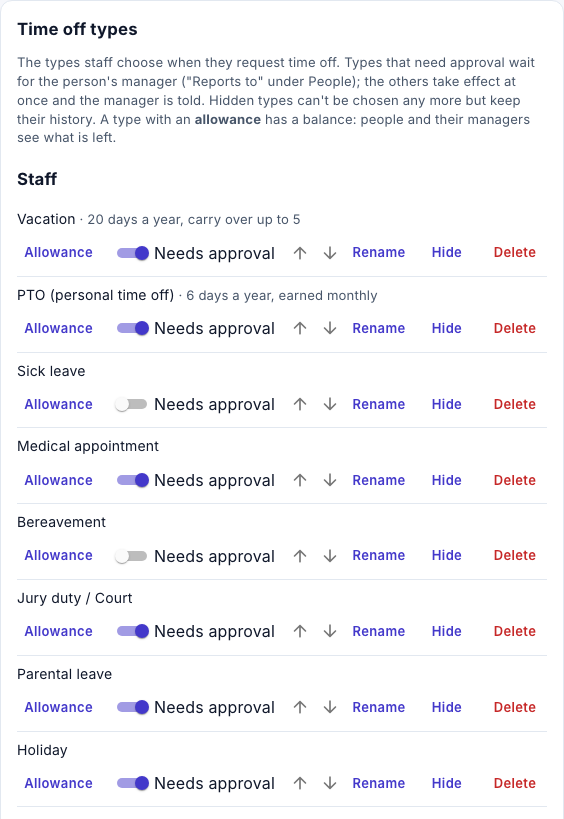
Types that need approval wait for the person's manager. The others take effect at once, and the manager is told.
Note
Leave For rooms / equipment off. It's for taking rooms and equipment out of use in products with bookable resources, and has no effect in PTO ONE on its own. Types listed under Rooms, equipment and vehicles are of that kind.
Change a type
| Button | What it does |
|---|---|
| Needs approval | Turn on to make requests of this type wait for the manager. |
| The arrows | Move the type up or down in the list people choose from. |
| Rename | Changes the name. Enter it, and then select Save name. |
| Hide / Show | A hidden type can't be chosen any more, but keeps its history. At least one type must stay available. |
| Delete | Removes a type that has never been used. A used type can't be deleted: hide it instead. |
Set an allowance
-
Next to the type, select Allowance.
-
Enter the following information:
Field Description Days a year (empty: no balance) 0 to 366, in steps of half a day. Empty means the type has no balance, such as sick leave. Becomes available All at the start of the year, or One twelfth each month (Professional). Carry over at most (days) How many unused days move to next year (Professional). -
Select Save allowance.
A person who starts during the year gets a part of the allowance, from their Start date on the People page. To give one person a different allowance, see Manage leave balances.