Review and publish Studio changes
Updated October 31, 2026 · Applies to Platform ONE 1.34
Every Studio change is reviewed before it goes live. As an administrator, you approve it or send it back, and then publish it.
Prerequisites
- The Admin role. Designers can submit changes, but not approve or publish them.
- The Professional edition. Releases, scheduled publishing, more than one approver, and export and import need Enterprise. See Plans and features.
Review a change
When a change is submitted, approvers are notified, in the app and by email as each person prefers. Changes waiting for you are under My approvals in Studio.
-
In the menu, under Extend, select Studio.
-
Under My approvals, select Review.
-
Check What changes, compared with the live version.
-
Do one of the following:
- Enter an optional Comment, and then select Approve.
- Enter what needs to change, and then select Request changes. The draft goes back to the person who submitted it.
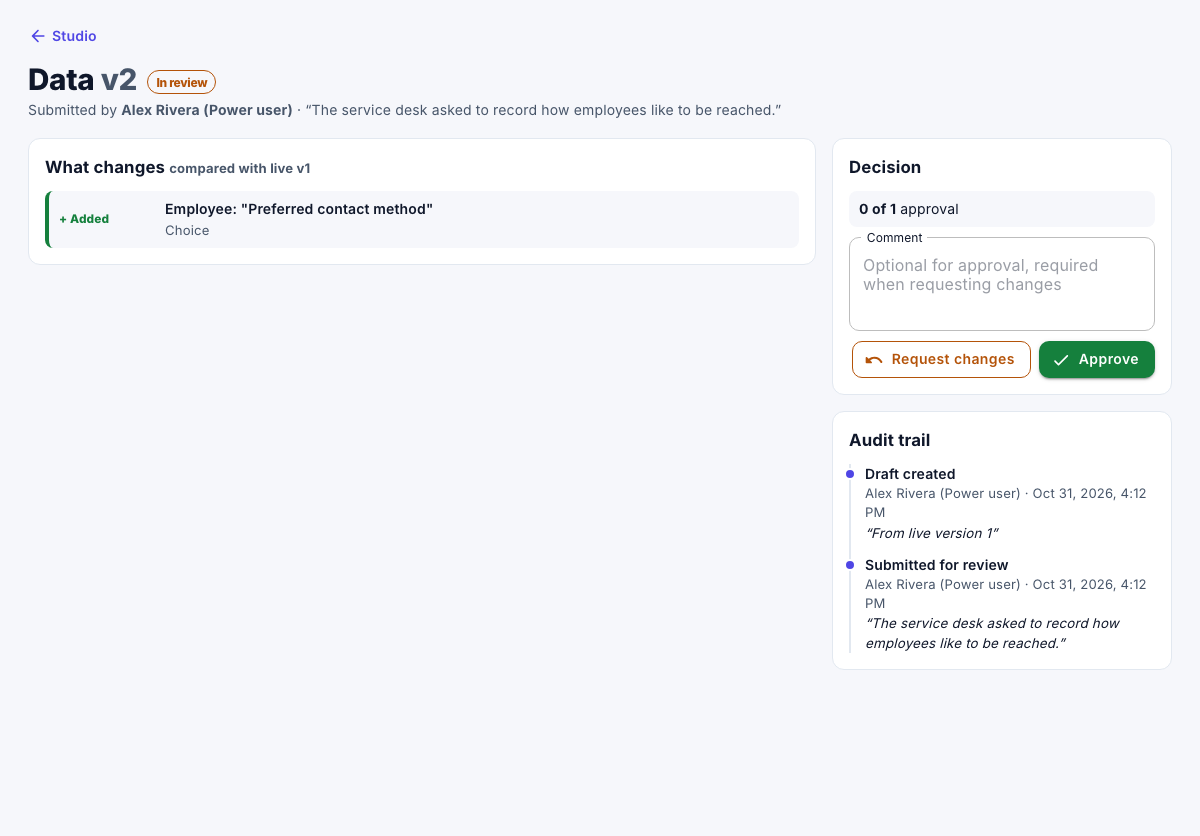
Publish a change
- On the approved change, select Review & publish.
- Select Publish now, or select Schedule…, choose the date and time, and then select Schedule.
A scheduled change shows when it goes live. To stop it, select Cancel schedule. The person who submitted it is told when it's approved, scheduled and live.
Roll back to an earlier version
- Under Version history, find the version you want back, and then select Roll back.
Its content becomes a new live version. You can't roll back while a change to the same item is in progress.
Group changes in a release
A release puts changes to several items live together, now or at a set time.
- Under Releases, select New release, enter a Name and What it's for, and then select Create.
- On the release, under Add a change, choose a change or a new draft, and then select Add.
- Once every change is approved, select Publish now, or schedule it.
While a release is scheduled, its changes can't be edited or taken out. If one is sent back for changes, the schedule is canceled. Export saves the release as a file, which another workspace can bring in with Import, as drafts.
Set how approval works
-
Under Approval, set the following:
Field Description Changes need approval before they can be published Turn it off to approve changes as soon as they're submitted. Approvers per change How many administrators must approve. More than one needs Enterprise. Whoever submitted a change may approve it Lets an administrator approve their own change. -
Select Save. It applies to changes submitted from then on.
Everyone with the Admin role can approve.