Use the dock board
Updated October 31, 2026 · Applies to BayCheck ONE 1.34
The dock board shows every bay right now: what's on it, what comes next, and what's running over. It refreshes every 15 seconds.
Prerequisites
- The Reception, Manager or Admin role.
- The wall display needs the Professional edition, and All sites needs Enterprise. See Plans and features.
Read the board
-
In the menu, under Workspace, select Dock board.
-
Choose the site, or All sites to see every site you work at.
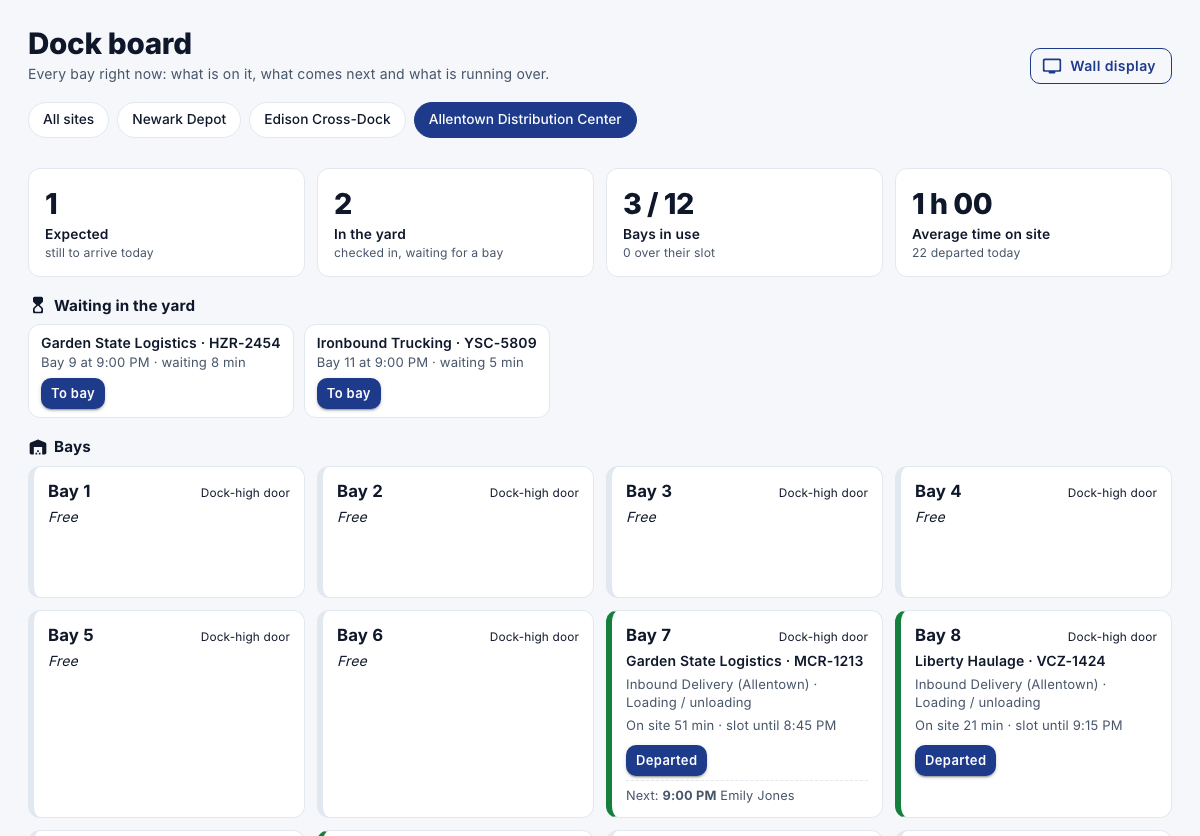
| Part | Shows |
|---|---|
| Expected | Trucks still to arrive today. |
| In the yard | Checked in, waiting for a bay. Select To bay to send one. |
| Bays in use | Bays with a truck, and how many are over their slot. |
| Average time on site | For trucks that left today. |
| Bays | A tile per bay. A red bay has a truck past its booked slot. |
When the next truck on an occupied bay is due, its tile shows At risk: bay still occupied and proposes another free bay with Move to ….
Show the board on a TV
- Choose a site, and then select Wall display.
The board opens full screen, without buttons, at an address that works without signing in. Open it on the TV's browser.