Add your own fields
Updated October 31, 2026 · Applies to Platform ONE 1.34
With Data in Studio, you add your own fields to records, such as a customer's insurance provider or a company's account number. The records you can add fields to depend on your products: customers in every product, services in products with bookings, resources in products with staff and resources, and companies and leads in Rolodex ONE.
Prerequisites
- The Admin or Designer role.
- The Professional edition. See Plans and features.
Add a field
-
In the menu, under Extend, select Studio.
-
On Data, select Edit fields, or Continue editing if a draft is already open.
-
Select the record's tab, for example Customers or Services. Each tab shows how many of your own fields the record has.
-
Under New field, enter the label, choose its Kind, and then select Add.
Kind Holds Text A short text. Long text Several lines. Number A number. Date A date. Choice One of the Choices (one per line) you enter. Tick box Yes or no. -
Select the field, and set its Help text, and whether it's shown to customers or on public pages, where the record offers it. On customers, you can also let The customer may change it on their own profile.
-
Move fields up or down to set their order, and check How it looks.
-
Enter a Change note for reviewers, select Save draft, and then select Submit for review.
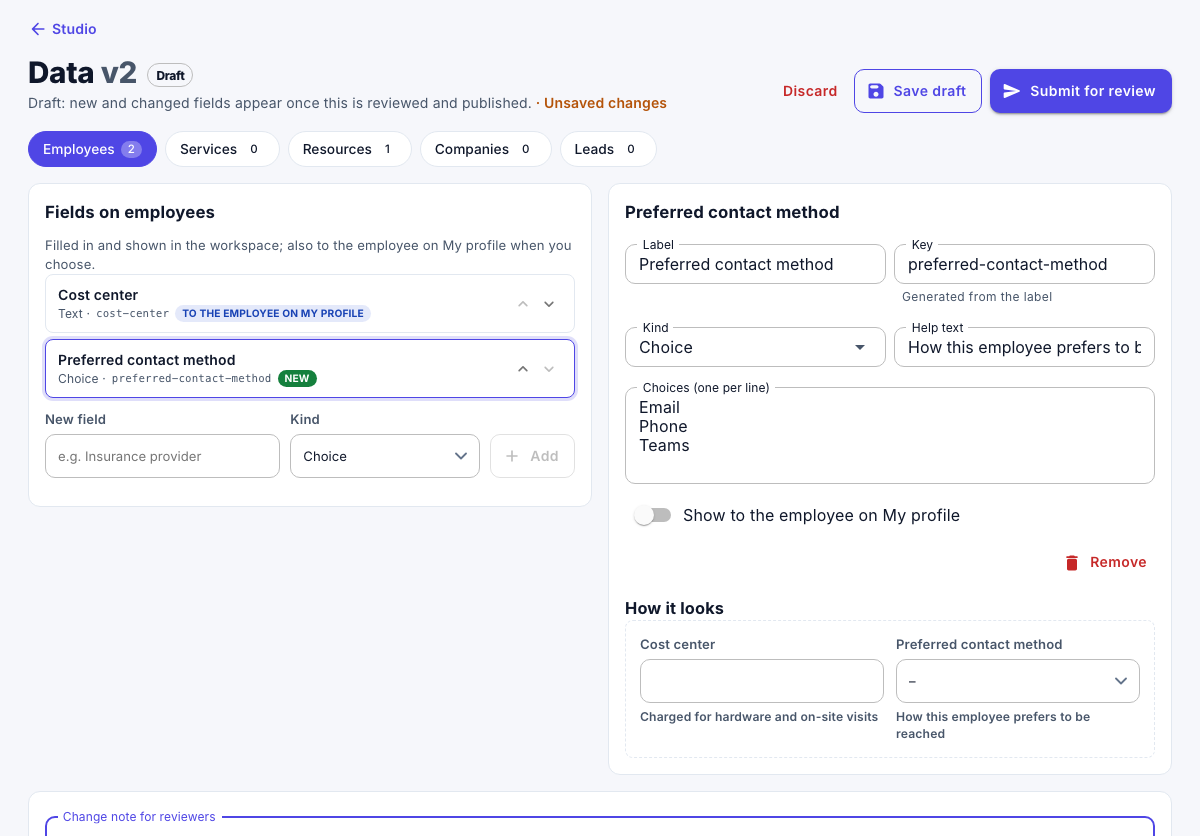
New fields appear once the change is published. See Review and publish Studio changes.
Note
A field's key and kind are fixed once it's published, so the values entered stay valid. You can still change its label and help text.
Retire a field
- In a draft, select the field, and then select Retire.
It's no longer shown or filled in, but the values already entered are kept. To use it again, select Bring back. A field that hasn't been published yet can be removed with Remove.