Approve time off
Updated October 31, 2026 · Applies to PTO ONE 1.34
When someone you manage requests time off, you're notified, and the request waits for you on the Time off page. You can also record time off for them yourself.
Prerequisites
- You approve for the people who report to you. Without a direct manager, the lead of their team approves, then the managers of their location. Administrators can approve for everyone.
Approve or decline a request
-
In the menu, under Workspace, select Time off.
-
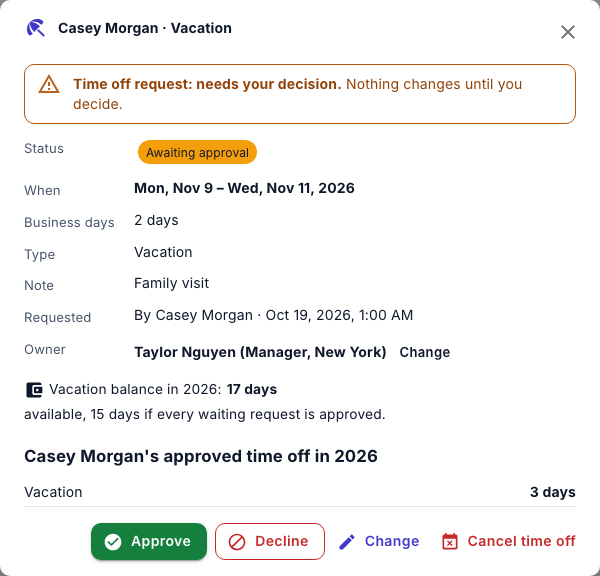
Under Requests to approve, check the request: who, the type, when, how many business days, their note, and what they've taken this year.
-
Select Review.
-
Do one of the following:
- Select Approve.
- Select Decline, enter a Reason (the staff member will see this), and then select Decline request.
The person is notified of your decision. You can't decide on your own time off.
Record time off for someone
- On Time off, select Add time off.
- In Who, choose the person, and then fill in the type and dates as for a request.
- Select Save time off.
Time off you record is approved at once, and can be in the past, for example sick leave someone told you about.
See your team's time off
- Team: upcoming and recent lists your team's time off, with its type, business days, owner and status. Choose a team to narrow the list.
- Totals for the year shows each person's approved time off, in total and by type.
To change or cancel someone's time off, select it, and then select Change or Cancel time off.
In products with bookings, such as BookIt ONE, Bookings needing attention also lists appointments that fall inside approved time off, to move or cancel.