Set up sites and bays
Updated October 31, 2026 · Applies to BayCheck ONE 1.34
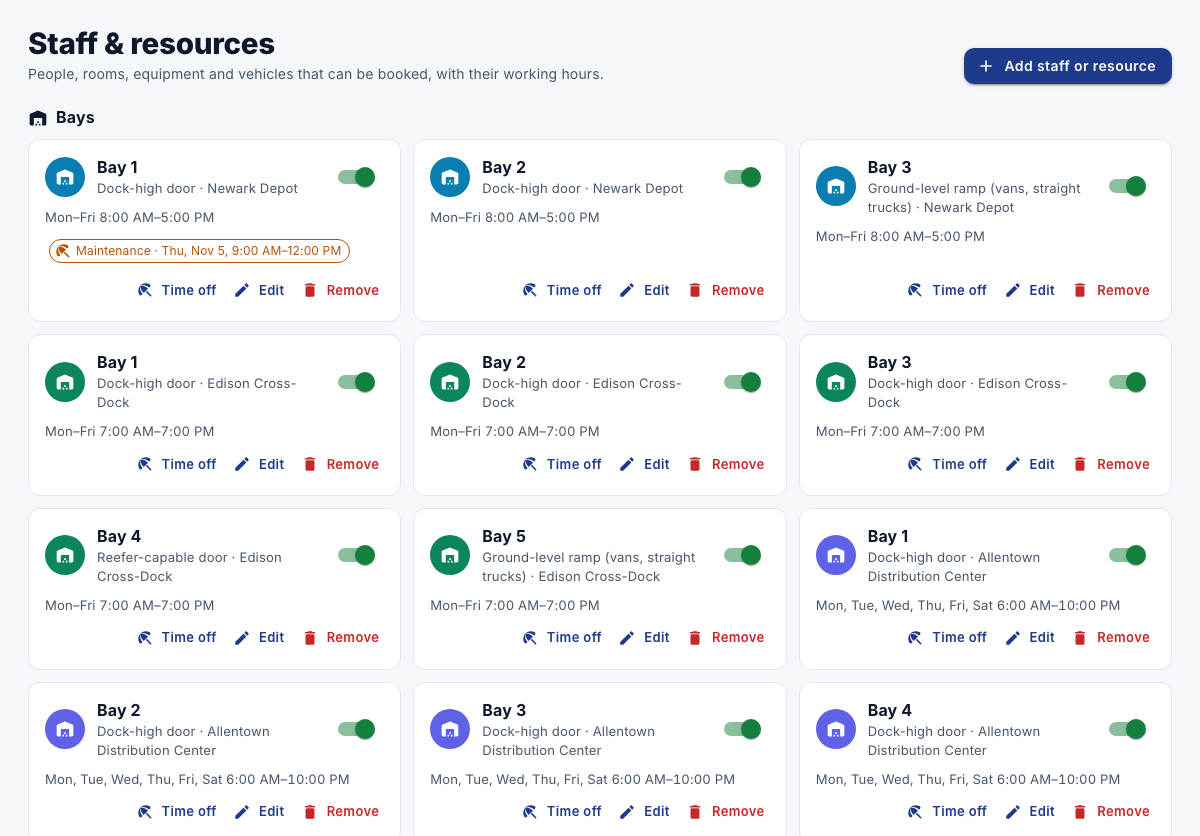
Each site is a location. Each bay is a resource at that site, with a type, the loads it can take and its opening hours.
Prerequisites
- The Admin role.
- Your sites. See Manage locations. Several sites in one view needs the Enterprise edition.
Add a bay
-
In the menu, under Administration, select Staff & resources.
-
Select Add staff or resource, and choose the bay type.
-
Enter the following information:
Field Description Name For example "Bay 9". Description Shown with the name. Skills (comma-separated) What the bay can take, such as ReeferorDock-high. Services that ask for these offer only the bays that have them.Location Its site. Calendar color Its color on the calendar. Available for booking Turn off to stop offering it. -
Under Working hours, set when the bay can be booked.
-
Select Save.
To rename the bay type or add others, use Resource types under Business rules. See Set up staff and resources.
Take a bay out of service
- To stop offering a bay altogether, turn off Available for booking.
- To take it out of service for a period, such as for maintenance, your organization also needs PTO ONE: then a site manager adds time off for the bay on Time off, with a type for rooms and equipment.
Note
Without PTO ONE, there's no way to block a bay for a period only.