Manage people
Updated October 31, 2026 · Applies to Platform ONE 1.34
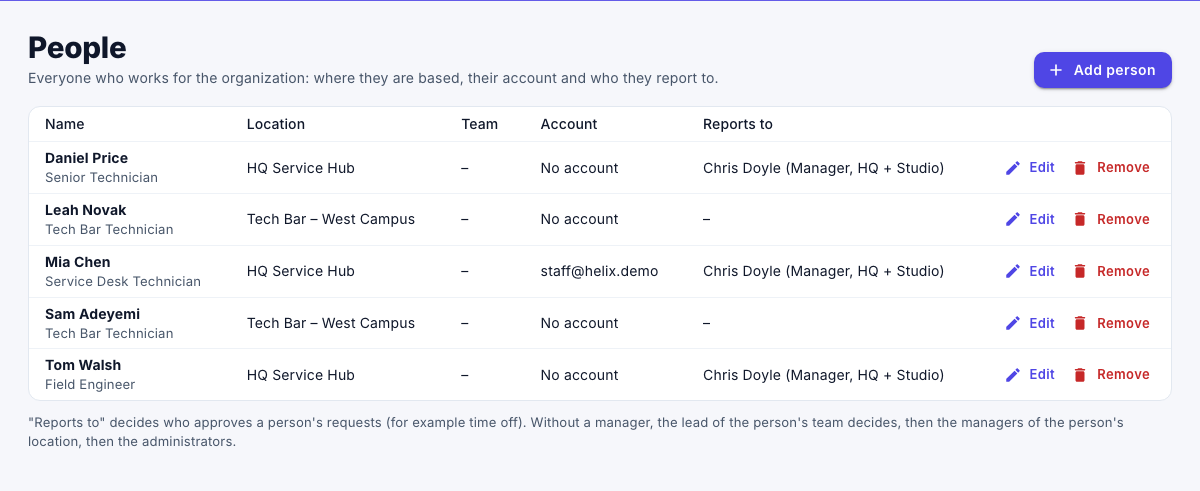
The People page lists everyone who works for your organization: where they're based, their account and who they report to. Products use it to decide who approves whose requests and who sees whose records.
A person isn't the same as a user. A user is an account someone signs in with. A person can have an account, or no account at all.
Prerequisites
- The Admin role.
- To link a person to an account, add the user first. See Manage users and roles.
Add a person
-
In the menu, under Administration, select People.
-
Select Add person.
-
Enter the following information:
Field Description Name Required. Job title (optional) Shown under the name. Location Where they're based, or No fixed location. Start date (optional) When they started. PTO ONE uses it to work out a first year's leave. Account The user they sign in as, or No account (can't sign in). An account can be linked to only one person. Team Their team, or No team. Reports to Their direct manager, or Nobody (the team lead decides, then location managers). A person can't report to themselves. -
Select Save.
Who approves a person's requests
Reports to decides who approves a person's requests, for example their time off. Without a manager, the lead of the person's team decides; if the person leads the team themselves, the lead of the department decides. Then come the managers of the person's location, and then the administrators.
Remove a person
- On the person's row, select Remove, and then confirm.
The person leaves the lists. Their history, such as past time off, is kept, and their account isn't deleted. If they still own records, a message offers Move them, which opens Record ownership.