Set up calendar sync
Updated October 31, 2026 · Applies to Platform ONE 1.34
Calendar sync connects your staff's calendars in Microsoft 365, Google or Exchange to Platform ONE. A provider can be offered to each person, who connects their own calendar from their profile, or switched on for everyone in your email domains at once.
What a connected calendar does depends on your products:
- In products where people are booked, such as BookIt ONE, busy times in a person's calendar close their booking times, and confirmed bookings are written to their calendar. Online appointments get a Teams or Meet link.
- In every product, the connection is also what email sync uses to read and send emails.
Prerequisites
-
The Admin role.
-
Calendar sync with Microsoft 365 and Google needs the Professional edition. Exchange on premises needs Enterprise. See Plans and features.
-
An app registration with your provider:
Provider People connect their own Organization-wide Microsoft 365 An app in Microsoft Entra ID with delegated Calendars.ReadWrite; its client ID and secretThe same app with application Calendars.ReadWriteand admin consent; your directory (tenant) IDGoogle An OAuth client with the calendar scope A service account with domain-wide delegation for the calendar scope; its JSON key Exchange on premises Not available The Exchange Web Services (EWS) address, and a service account with ApplicationImpersonation. No Teams links.
Connect a provider
-
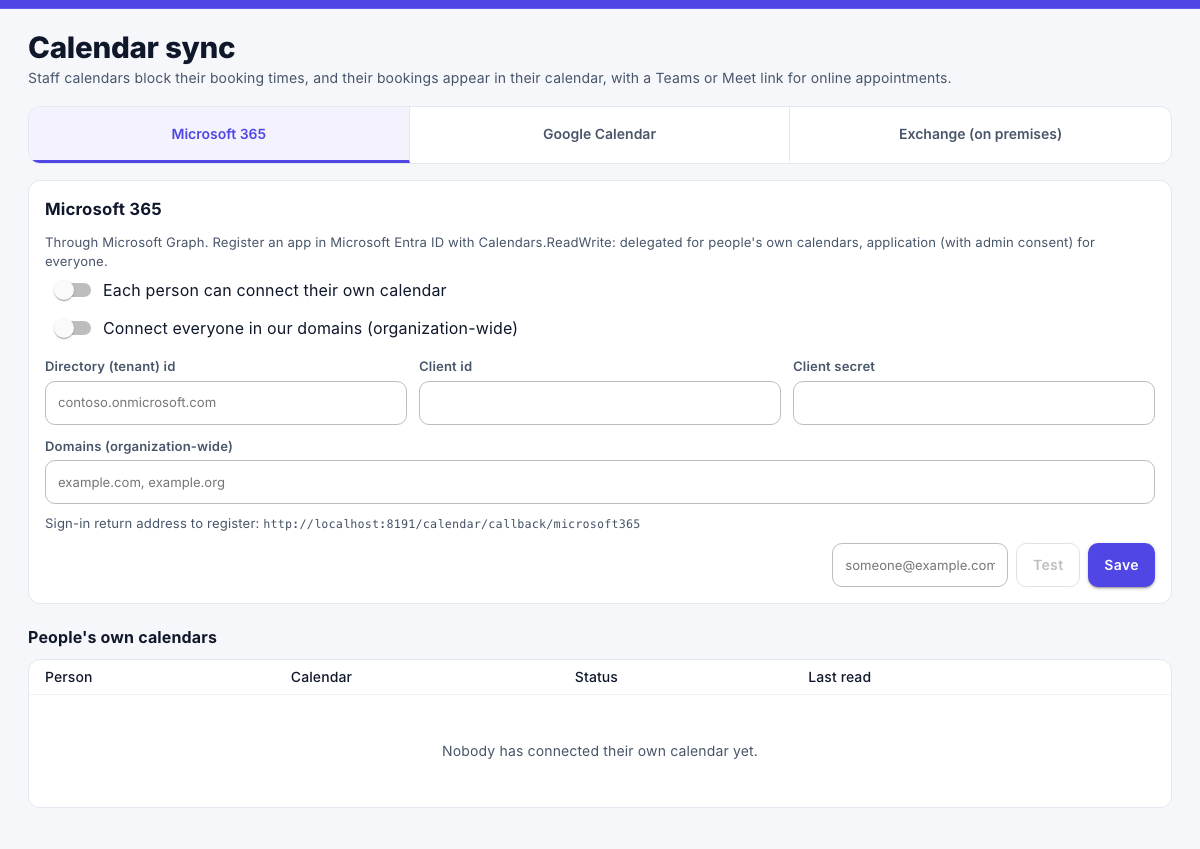
In the menu, under Administration, select Calendar sync.
-
Select the provider's tab: Microsoft 365, Google Calendar or Exchange (on premises).
-
Turn on Each person can connect their own calendar, Connect everyone in our domains (organization-wide), or both.
-
Enter the details from your app registration: for example, the Directory (tenant) id, Client id and Client secret for Microsoft 365.
-
For organization-wide sync, enter your email Domains (organization-wide).
-
Register the sign-in return address shown on the tab with your provider.
-
Select Save.
Secrets are stored encrypted and never shown again. To replace one, type the new value.
To check organization-wide access, enter a staff member's email under the provider and select Test.
See who has connected
Under People's own calendars, the page lists each connected calendar, with its status and when it was last read. To end someone's connection, select Disconnect.
People connect their own calendar under Your calendar on My profile.