Use the team calendar
Updated October 31, 2026 · Applies to PTO ONE 1.34
The team calendar shows who's off in a month, so you can plan time off around each other.
Prerequisites
- The Admin, Manager or Staff role.
- The Professional edition of PTO ONE. See Plans and features.
Open the team calendar
-
In the menu, under Workspace, select Team calendar.
-
Use the arrows to see the previous or next month, or select This month.
-
To show one team, choose it in Team.
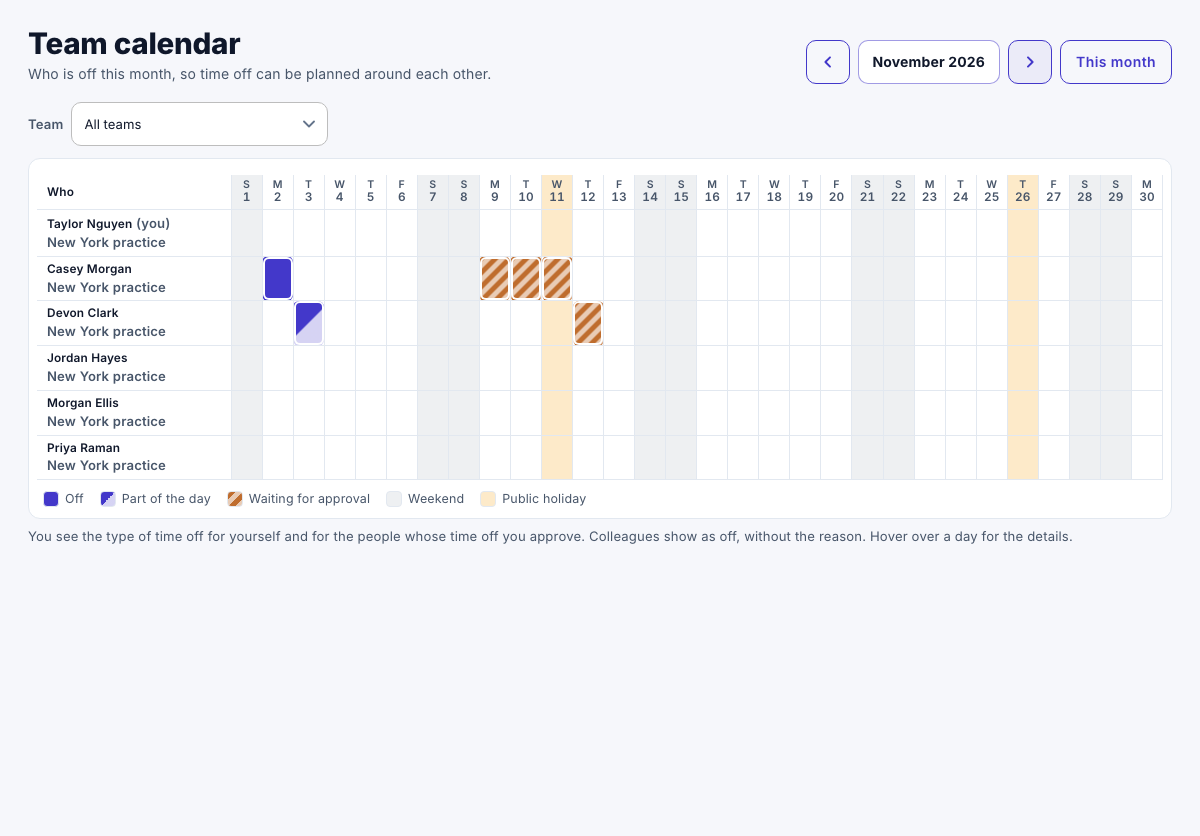
Each row is a person, with their team. The key below the calendar shows days Off, Part of the day, Waiting for approval, Weekend and Public holiday. Hover over a day for the details.
Who you see
| You are | You see |
|---|---|
| Anyone | Yourself, and the people on your team. |
| A manager | Also the people whose time off you approve. |
| An administrator | Everyone. |
You see the type of your own time off, and of the people whose time off you approve. Colleagues show as off, without the reason.