Manage locations
Updated October 31, 2026 · Applies to Platform ONE 1.34
A location is a site where your organization works, such as an office, a clinic or a warehouse. People are based at a location, and products use locations in their own way: for example, what can be booked at each site.
Prerequisites
- The Admin role.
- More than one location needs the Professional edition. See Plans and features.
Add a location
-
In the menu, under Administration, select Locations.
-
Select Add location.
-
Enter the following information:
Field Description Name Required, and different from your other locations. Shown to your customers. Address Shown in confirmation emails. Phone (optional) Shown with the address. -
Select Save.
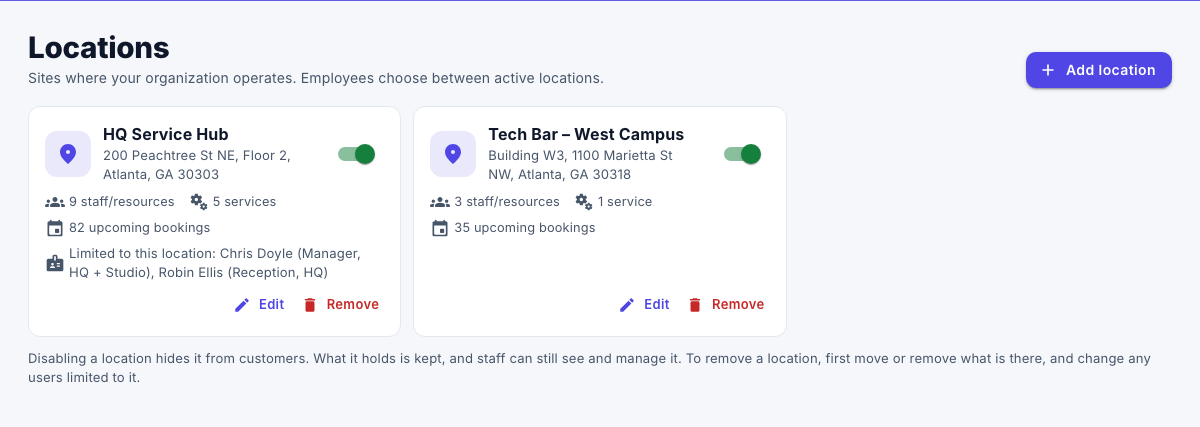
Each card shows what's at the location, and the users whose access is limited to it.
Change a location
- On the location's card, select Edit.
- Change the details, and then select Save.
To see who changed the location and when, select the history button in the editor.
Disable a location
Disabling a location hides it from your customers. What it holds is kept, and your staff can still see and manage it.
- On the location's card, turn off the switch.
- Select Disable to confirm.
The card then shows Hidden from booking page. To open the location again, turn the switch back on. You can't disable your only active location.
Remove a location
- On the location's card, select Remove, and then select Remove again to confirm.
You can remove a location only when:
- It isn't your only active location.
- Nothing is there any more, for example services, staff or resources. Move or remove them first.
- No user's access is limited to it. Change those users first, under Staff users & roles.
If records in the past refer to the location, it's archived instead of deleted, so that history stays complete.
Caution
Holidays that apply only to the location are deleted with it. People based at the location keep a link to a location that no longer exists: change their location on the People page before you remove it.