Find your way around
Updated October 31, 2026 · Applies to Platform ONE 1.34
Every product in your workspace uses the same layout: a menu on the left, a top bar, and the page in the middle.
Prerequisites
- A Platform ONE account. See Sign in.
The menu
The menu on the left groups the pages you can use:
| Section | Holds |
|---|---|
| Workspace | The pages of your products, such as Time off or Contacts. |
| Extend | Studio, for administrators and designers. |
| Administration | Settings for administrators, and API approvals for managers. |
Which pages you see depends on your roles and your organization's products. A page that your organization's edition doesn't include shows a lock and the edition that has it, such as Professional. The name of your products is at the bottom of the menu.
To hide or show the menu, select the menu button at the left of the top bar.
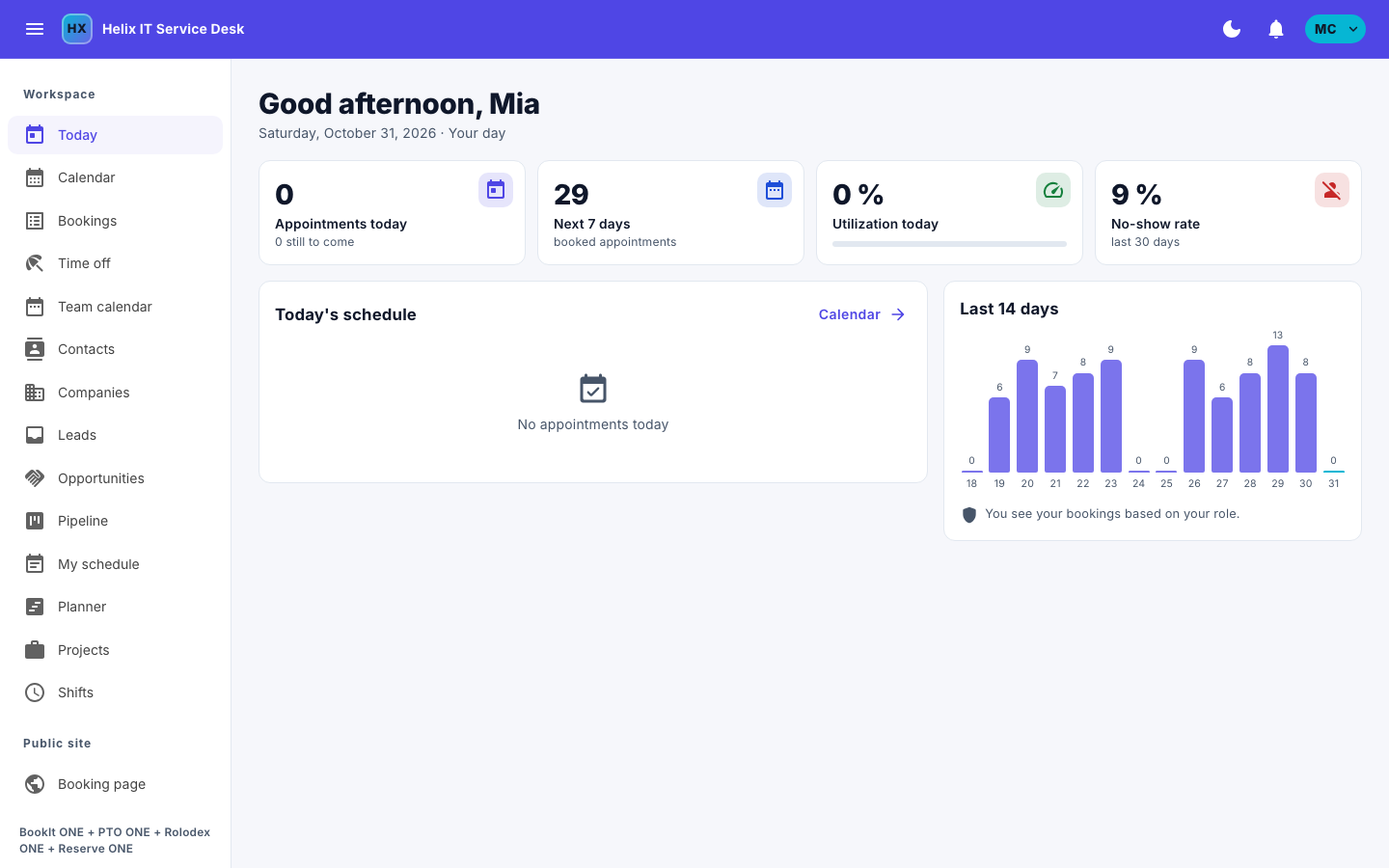
The top bar
| Item | What it does |
|---|---|
| Your organization's name | Takes you to your start page. |
| The moon or sun button | Switches between dark mode and light mode. |
| The bell | Shows your notifications. See Use notifications. |
| Your initials | Opens your account menu. |
The account menu
Select your initials to open it:
| Item | What it does |
|---|---|
| My profile | Your details, password, calendar and email. See Manage your profile. |
| Public booking page | Opens the page where customers book, in products where they do. |
| Install app | Installs Platform ONE as an app on your device, where your browser allows it. |
| Sign out | Signs you out. |
On a phone
On a small screen, the menu folds away. A bar at the bottom of the screen shows the pages you use most. Select More to open the full menu.
Lists
Long lists are split into pages. Use the arrows below the list to move between pages, and Rows per page to show more or fewer rows. Your choice applies to every list you open.