Book online
Updated October 31, 2026 · Applies to BookIt ONE 1.34
This article is for customers of an organization that uses BookIt ONE. You book on its booking page, with your own account.
Prerequisites
- The address of the organization's booking page.
Create an account
- On the booking page, select Create an account.
- Enter your First name, Last name, Email, optionally your Mobile phone and Student / member number, and a Password.
- Agree to your details being used to manage your bookings, and then select Create account.
- If you're asked to, open the email you receive and confirm your address.
Some organizations let you sign in with your organization's account instead, accept only some email addresses, or create accounts for you. The page says so.
Book an appointment
-
Sign in, and then select Book an appointment.
-
Under What would you like to book?, choose a location if there are several, and the service.
-
Under Choose a time, select a free time.
-
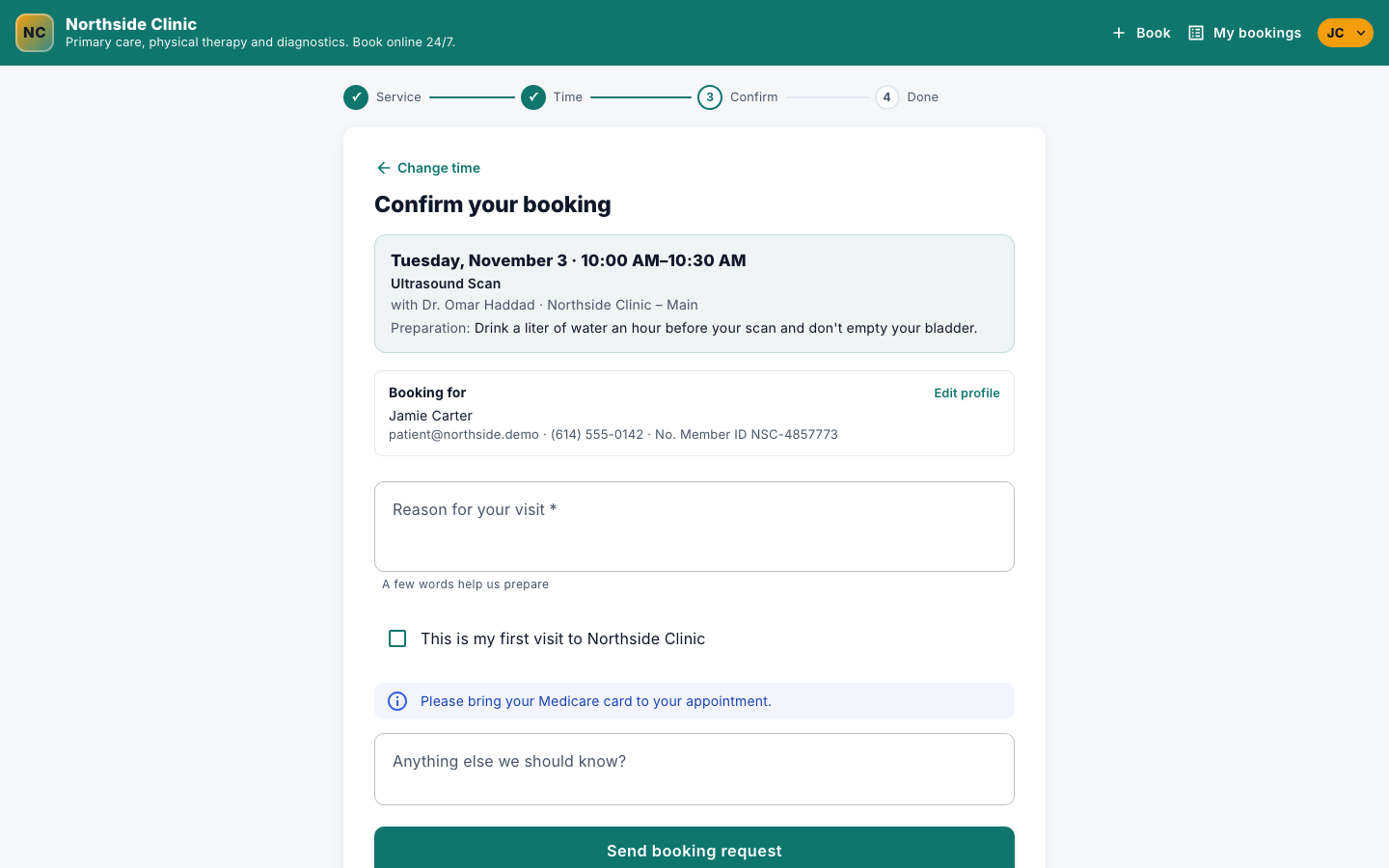
Under Confirm your booking, answer any questions, and add Anything else we should know?.
-
Select Confirm booking, or Send booking request for a service the organization checks first.
For a confirmed booking, you see You're booked! with a reference, and get a confirmation email. Select Add to calendar or Google Calendar to add it to your calendar. For a request, you see Request sent: the time is held for you, and you're emailed when it's confirmed.