Manage projects
Updated October 31, 2026 · Applies to Reserve ONE 1.34
Projects are the work people are planned on. Each states the effort it needs per role, so you can see what's planned and what's still to plan.
Prerequisites
- To add or remove projects: the Manager or Admin role. A project's Project Lead and owner can change and plan it.
Find projects
- In the menu, under Workspace, select Projects.
- Filter by Owner or Project Lead.
The list shows each project's dates, owner, Project Lead, planned of needed hours, and status.
Add a project
-
On Projects, select Add project.
-
Enter the following information:
Field Description Name Required. Client (empty for internal work) The company it's for. Starts, Ends The dates. Status Where it stands. Notes Anything else. Project Lead (runs it day to day) Plans it with the owner. Color Its color on the planner. Effort needed, by role For each Role: the Hours, and optionally Skills needed. Select Add a role for more. -
Select Save.
Work on a project
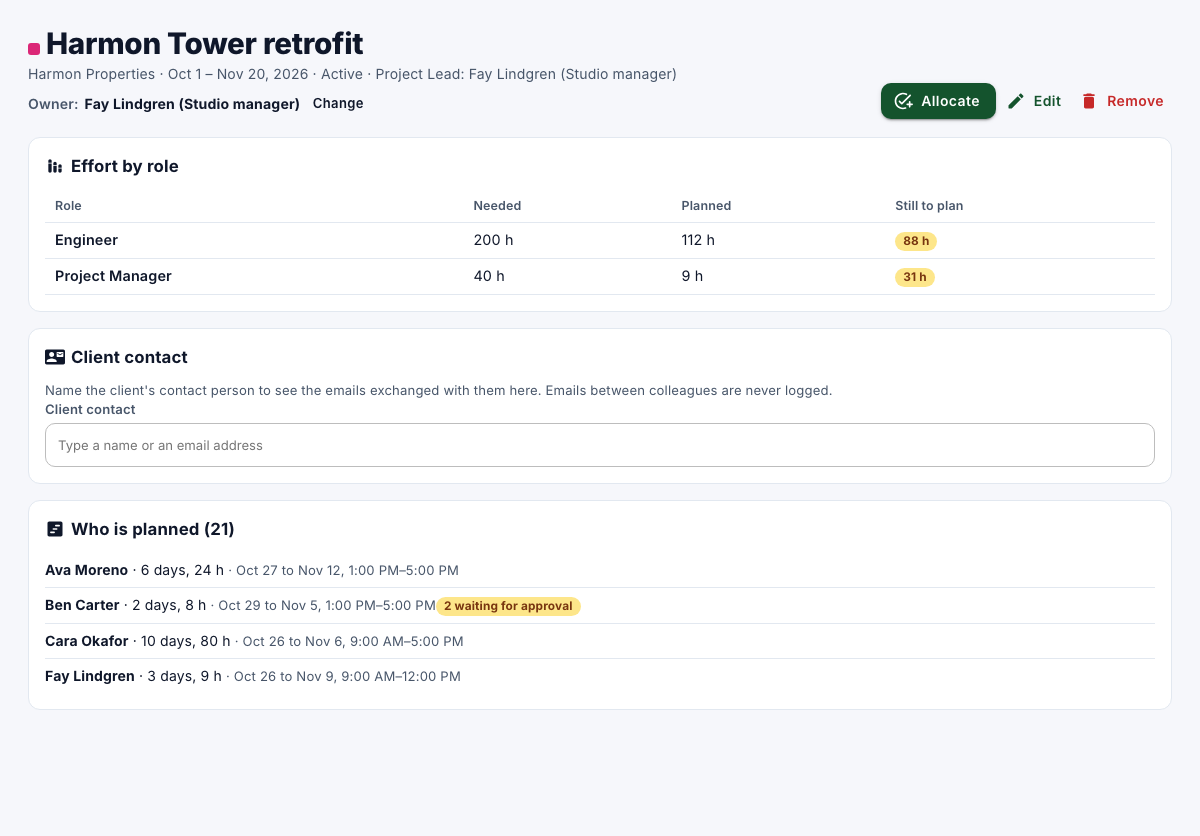
Open a project to see:
- Effort by role: needed, planned and still to plan, per role.
- Client contact: with email sync, name the client's contact person to see the emails exchanged with them.
- Notes and Who is planned.
To plan someone, select Allocate. To change the project, select Edit.
Remove a project
- Open the project, select Remove, and then confirm.
The project leaves the lists, and its future allocations are taken off the plan. What already happened is kept. Only managers and administrators can remove projects.