Sign in to Stakeholder ONE
Updated October 30, 2026 · Applies to Stakeholder ONE 1.3
Your administrator creates your Stakeholder ONE account. There's no way to sign up yourself. If you don't have an account yet, ask your administrator.
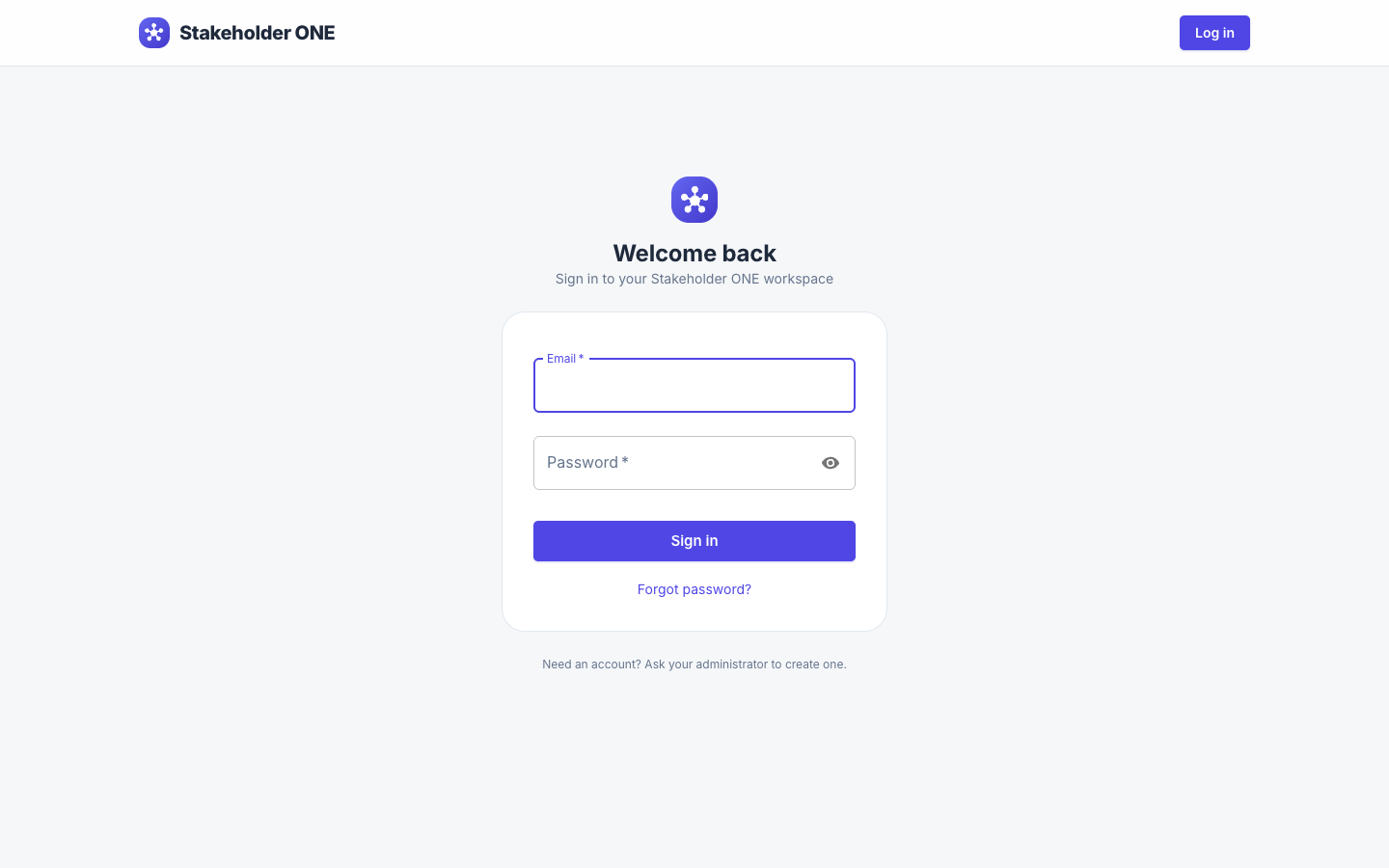
Set your password the first time
When your administrator adds you, you receive an email with a link to set your password.
- Select the link in the email. The Set your password page opens.
- Enter a password of at least 8 characters in New password and Confirm new password.
- Select Set password. You see Password set. You can now sign in.
- Select Go to sign in, and sign in with your email address and new password.
The link works only once and expires after a while (seven days, unless your administrator changed it). If it has expired, ask your administrator to send a new one.
Sign in with your email and password
- Go to your organization's Stakeholder ONE address.
- Enter your Email and Password, and then select Sign in.
Note
After eight failed attempts within 15 minutes, Stakeholder ONE stops accepting attempts for your email address for a short time. Wait 15 minutes, or ask your administrator to unlock you.
Sign in with single sign-on
If your organization has set up single sign-on (SSO), the sign-in page shows an extra button, such as Sign in with SSO or Sign in with Microsoft.
- Select the SSO button.
- Sign in with your work account if your identity provider asks you to.
You return to Stakeholder ONE, signed in.
Reset a forgotten password
- On the sign-in page, select Forgot password?.
- Enter your Email, and then select Send reset link.
- Check your inbox for the reset email, and select the link in it. The link expires after one hour, unless your administrator changed it.
- Enter and confirm your new password, and then select Set password.
For your security, the page shows the same message whether or not the email address has an account. If no email arrives, check your spam folder, then ask your administrator.
Set a new password when asked
If your administrator reset your password, Stakeholder ONE asks you to Set a new password the next time you sign in. Enter your current (temporary) password and a new one, and then select Set password and continue.
Sign out
Select your avatar in the top-right corner, and then select Log out.