Manage stakeholders
Updated October 30, 2026 · Applies to Stakeholder ONE 1.3
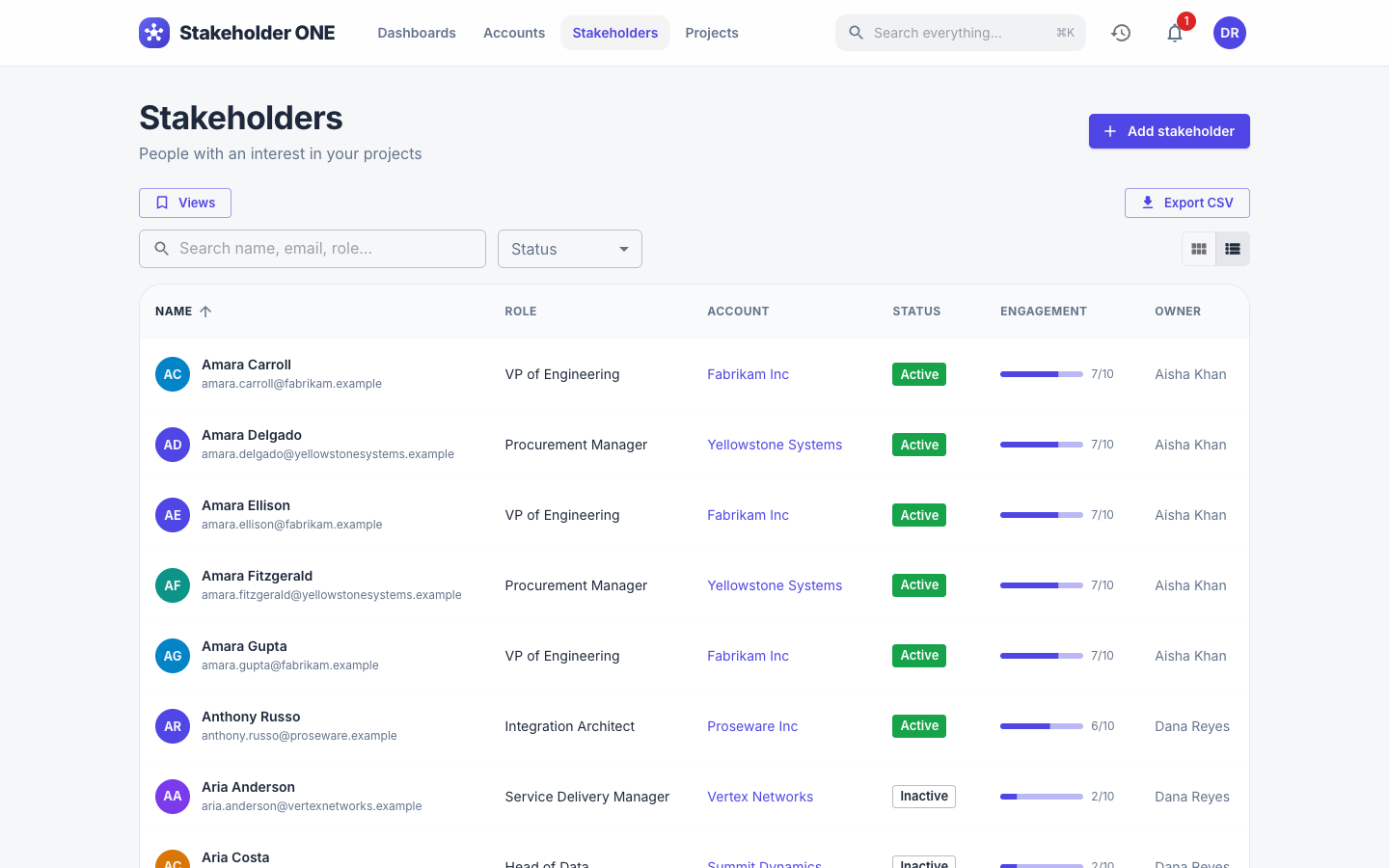
A stakeholder is a person with an interest in your projects: a sponsor, a decision-maker, a user representative. Tracking how engaged each one is helps you see who needs attention. Select Stakeholders in the top bar to see the stakeholders you have access to.
Add a stakeholder
-
On the Stakeholders page, select Add stakeholder.
-
Enter the following information:
Field Description Name The person's full name. Required. Role Their job or role, for example "Chief Information Officer". Required. Email Their email address. Required. Account The organization they belong to. Status Active or Inactive. Engagement level (1-10) How engaged they are with your work, from 1 (not engaged) to 10 (fully engaged). -
Select Add.
Tip
Review engagement levels regularly. The Stakeholders dashboard shows how engagement is spread across all your stakeholders.
View a stakeholder
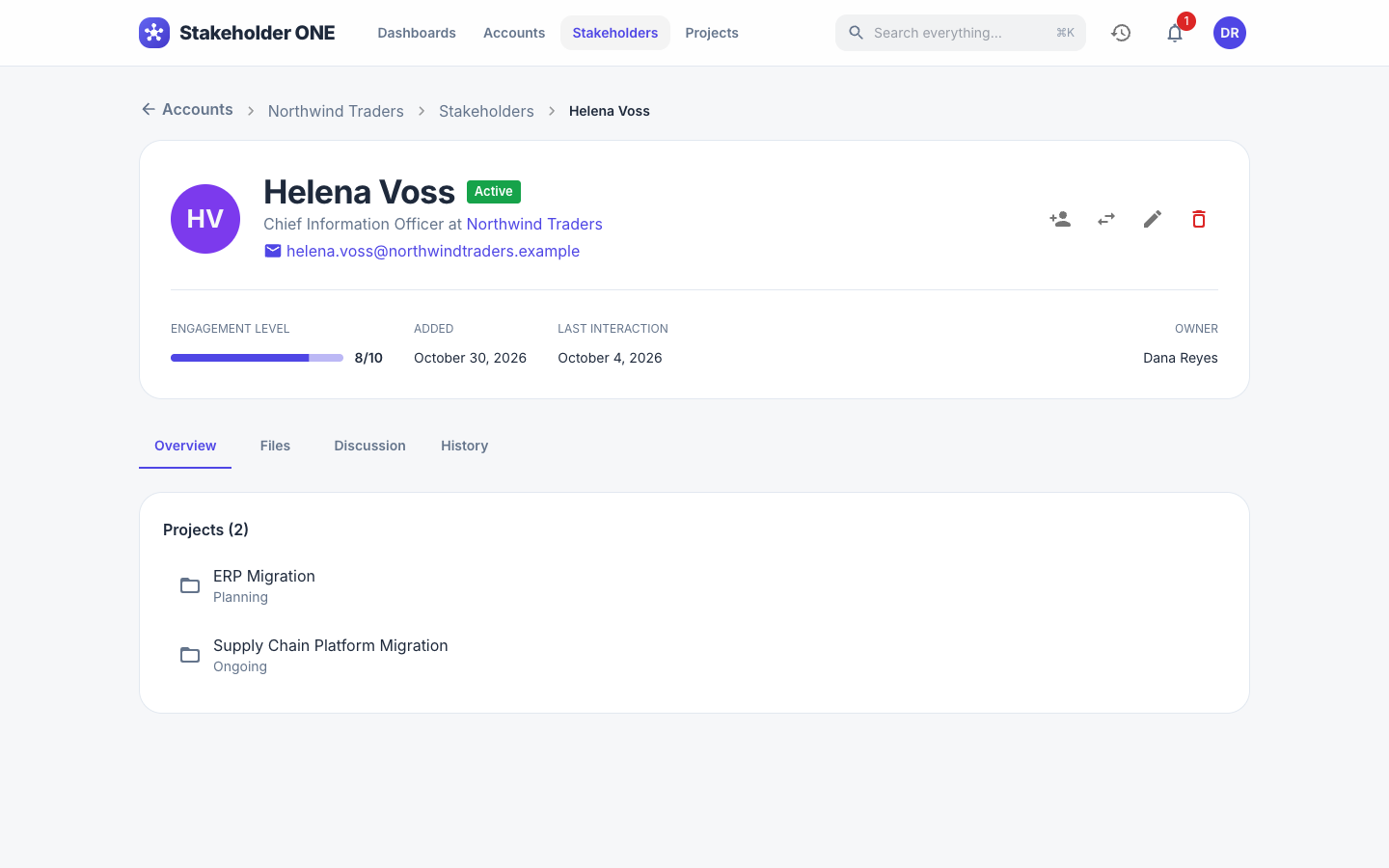
Select a stakeholder to open them. The Overview tab shows their details, their Engagement level, when they were Added, their Last interaction, and the projects they're assigned to.
To assign a stakeholder to a project, open the project instead. See Assign stakeholders to a project.
Edit or delete a stakeholder
- To change a stakeholder's details, open them, select Edit, make your changes, and save.
- To delete a stakeholder, open them, select Delete, and confirm. You can delete stakeholders you own; administrators can delete any stakeholder. Deleted stakeholders go to the recycle bin.