Discuss and share files
Updated October 30, 2026 · Applies to Stakeholder ONE 1.3
Every account, stakeholder and project has a Discussion tab for conversations and a Files tab for documents, so everything about a record stays in one place.
Discuss a record
- Open the record, and select the Discussion tab.
- Type your comment in Add a comment….
- To notify a colleague, type
@and start typing their name, then select them from the list. - Select Comment.
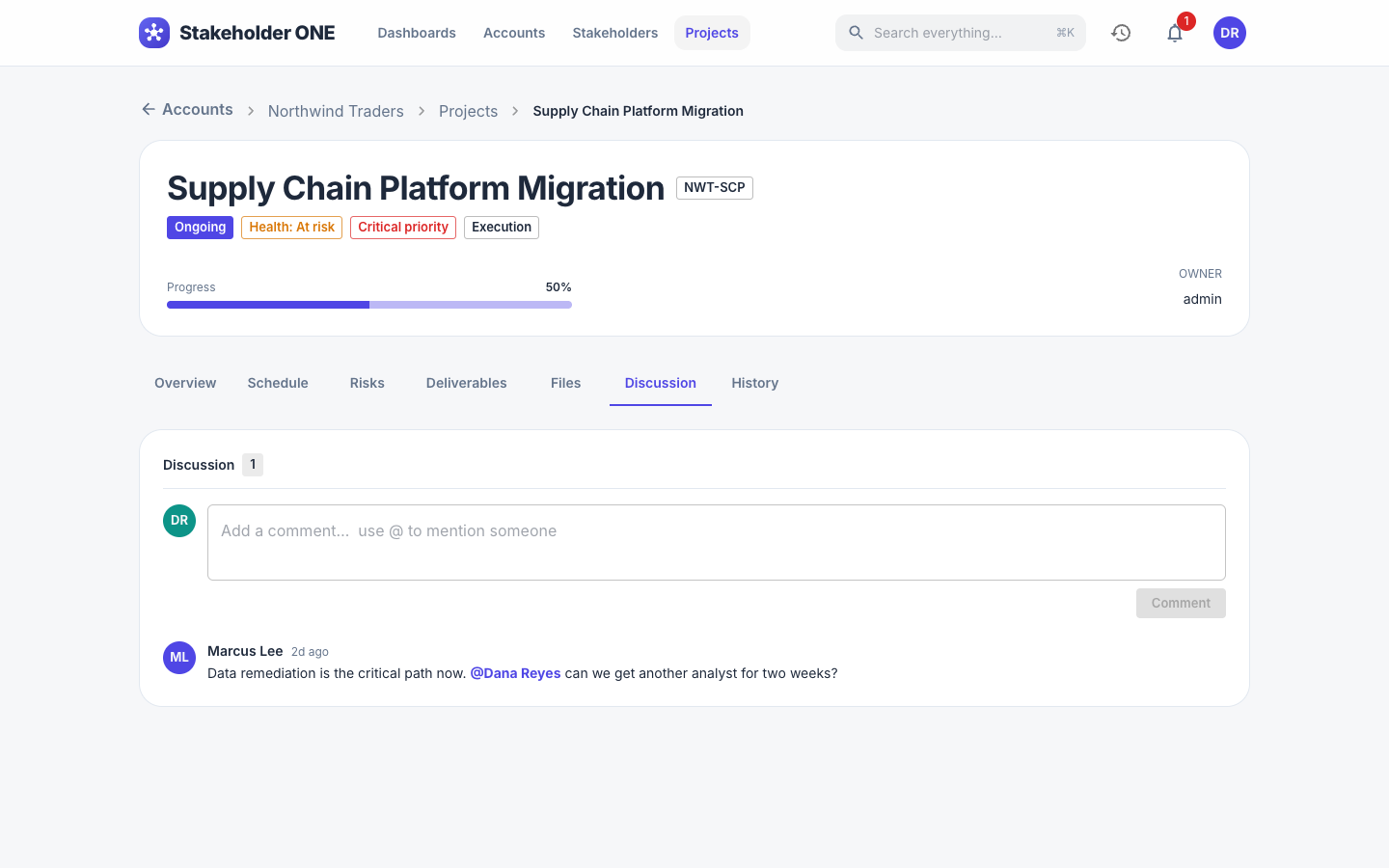
You can only @mention people who have access to the record.
Who's notified
- Everyone you @mention gets a notification.
- The record's owner gets a notification about every new comment, unless they wrote it.
Notifications appear under the bell icon in the top bar, and mentions also appear under My mentions on the My Activities dashboard.
Edit or delete a comment
You can edit or delete your own comments. Select Edit or Delete on the comment. If you add a new @mention while editing, only the newly mentioned person is notified.
Share files
Upload files
- Open the record, and select the Files tab.
- Optionally, enter a Description (optional, applies to all) for the files you're about to add.
- Select Choose files, and pick up to 20 files at a time, each up to 25 MB. You can also drag files onto the tab.
The upload starts as soon as you choose the files. If a file can't be uploaded, for example because it's too large, a message lists it with the reason.
Download files
- To download one file, select Download on its row.
- To download several, select them (or Select all), and then select Download. They're downloaded together as one .zip file.
Change or remove files
- To change a file's description, select Edit description.
- To remove a file, select Remove on its row, and confirm. To remove several, select them, and then select Delete.
You can remove files from records you're allowed to edit.