Manage projects
Updated October 30, 2026 · Applies to Stakeholder ONE 1.3
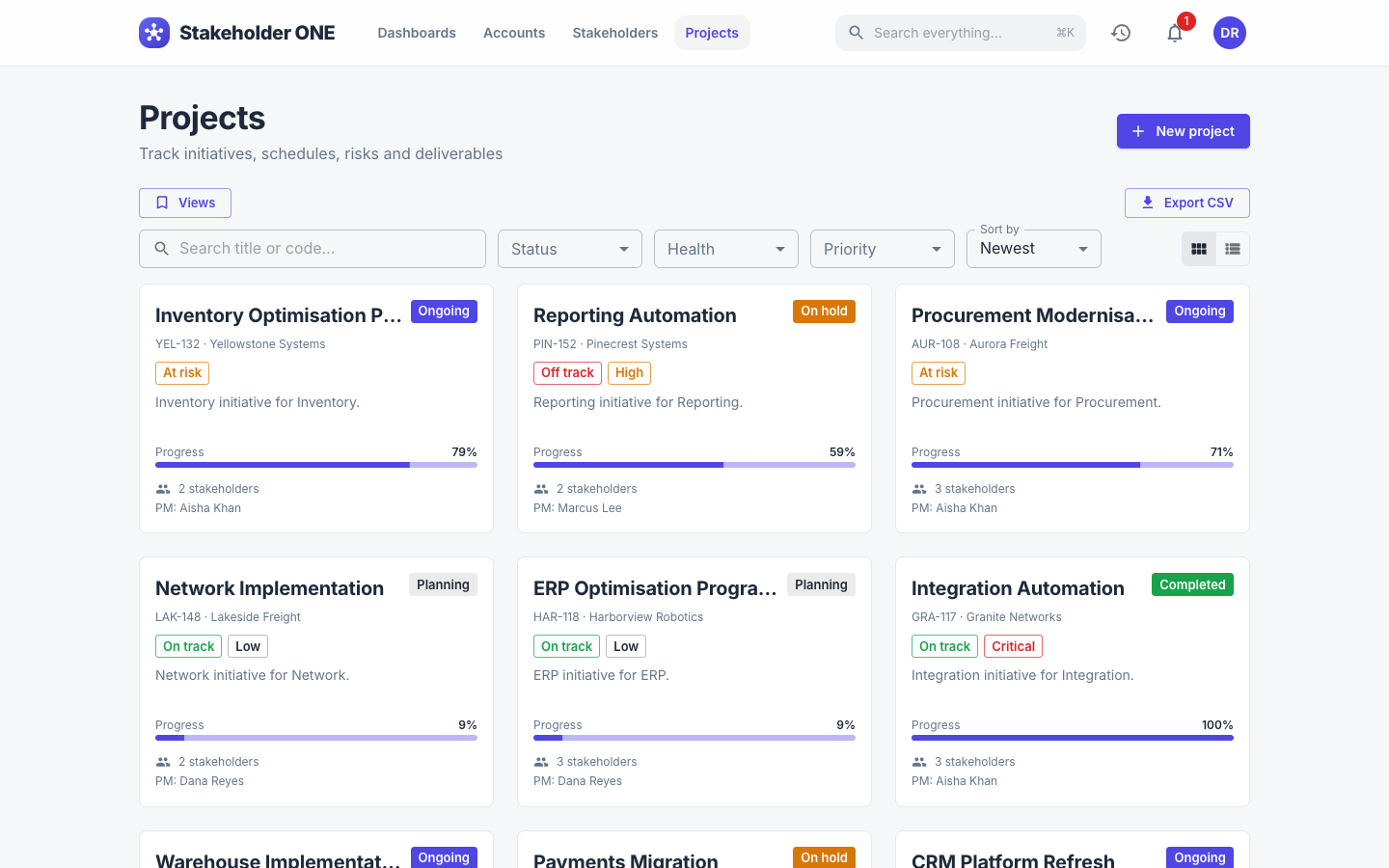
A project brings together the work for one initiative: its schedule, risks, deliverables, budget and the stakeholders involved. Select Projects in the top bar to see the projects you have access to, as cards or as a table.
Prerequisites
- To create projects, your role must allow it. The Project Manager, Projects Admin and System Administrator roles can.
Create a project
-
On the Projects page, select New project.
-
Enter the project details. Title and Start are required, unless your administrator has made other fields required.
Section Fields Classification Title, Code (a short reference such as NWT-SCP), Account, Status, Health, Priority, Phase, Category / department, and a Percent complete sliderSchedule Start, End, Baseline start, Baseline end People Owner, Project manager, Sponsor (a stakeholder) Budget Currency, Budget, Actual cost Custom fields Any fields your organization added For the meaning of each value, see Fields and values.
-
Select Create.
Read a project's overview
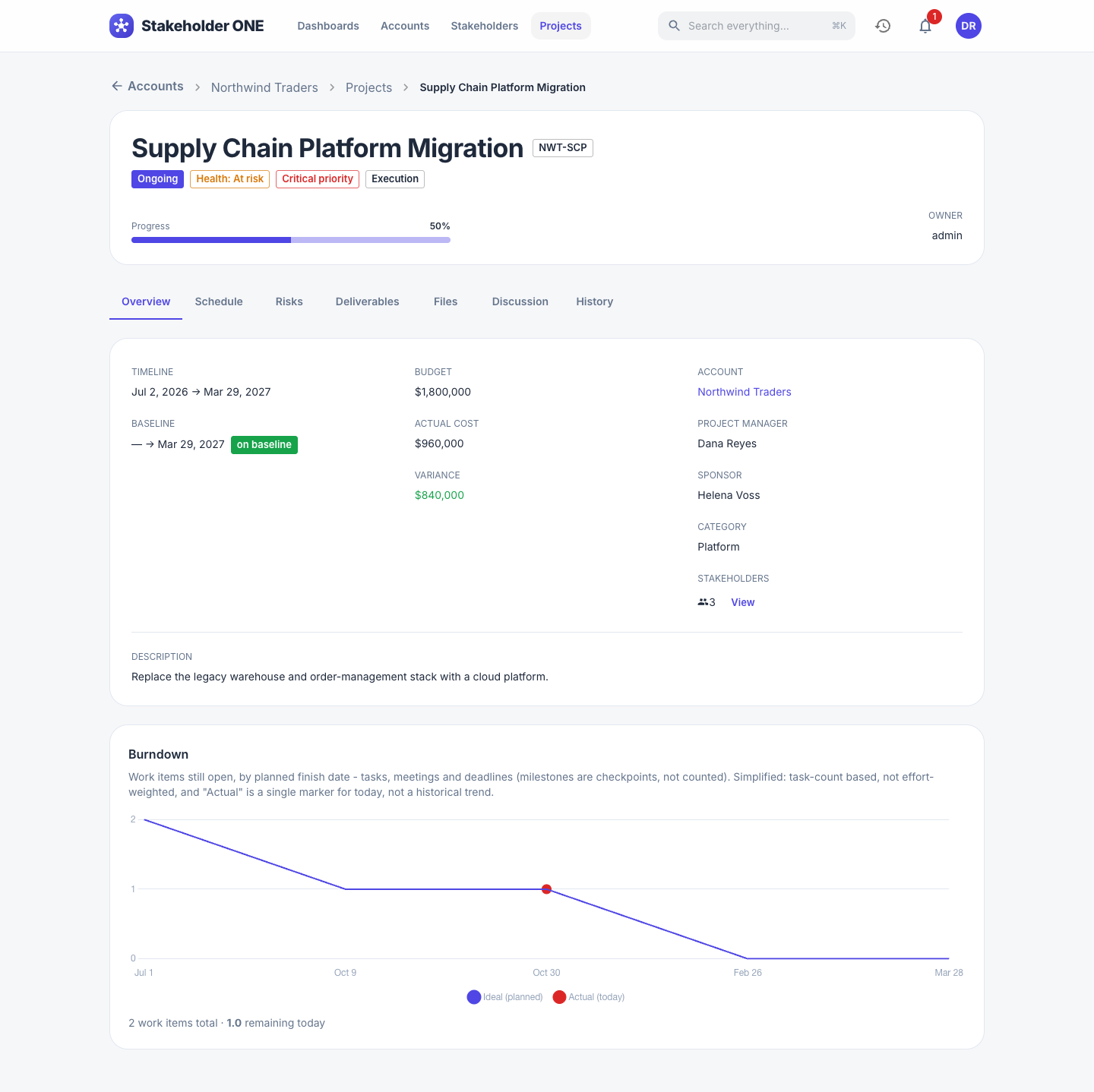
Open a project to see its header: status, health, priority and phase, the Progress bar and the Owner. The Overview tab shows:
- Timeline and Baseline: the planned dates, and whether the project is still on its baseline.
- Budget, Actual cost and Variance (budget minus actual cost). A negative variance, shown in red, means the project is over budget.
- Account, Project manager, Sponsor, Category and Stakeholders.
- A Burndown chart of the work items on the Schedule tab that are still open.
Update status, health and progress
- Open the project, and select Edit.
- Change Status, Health, Phase or Percent complete. Progress isn't calculated automatically; set it to reflect where the project stands.
- Select Save.
Complete, pause or reopen a project
Setting Status to Completed or On hold locks the project. Its details, schedule, risks and deliverables can't be changed, and a message on the project says so.
To make changes again, select Reopen on the project, and then select Reopen as Planning or Reopen as Ongoing.
Delete a project
- Open the project, select Delete, and confirm.
The project goes to the recycle bin, where it can be restored.
Export or import a whole project
If your role can edit all projects, you can save a complete copy of a project, including its schedule, risks, deliverables, discussion and files, as a .zip archive.
- To export, open the project, and select Export project archive (.zip).
- To import, on the Projects page, select Import project, and choose the .zip file. The project is restored exactly as it was. If a person or account in the archive can't be found, Stakeholder ONE tells you which references couldn't be re-linked.
You can't import a project that still exists. Delete it permanently first, or import it into another Stakeholder ONE environment.