Plan the schedule
Updated October 30, 2026 · Applies to Stakeholder ONE 1.3
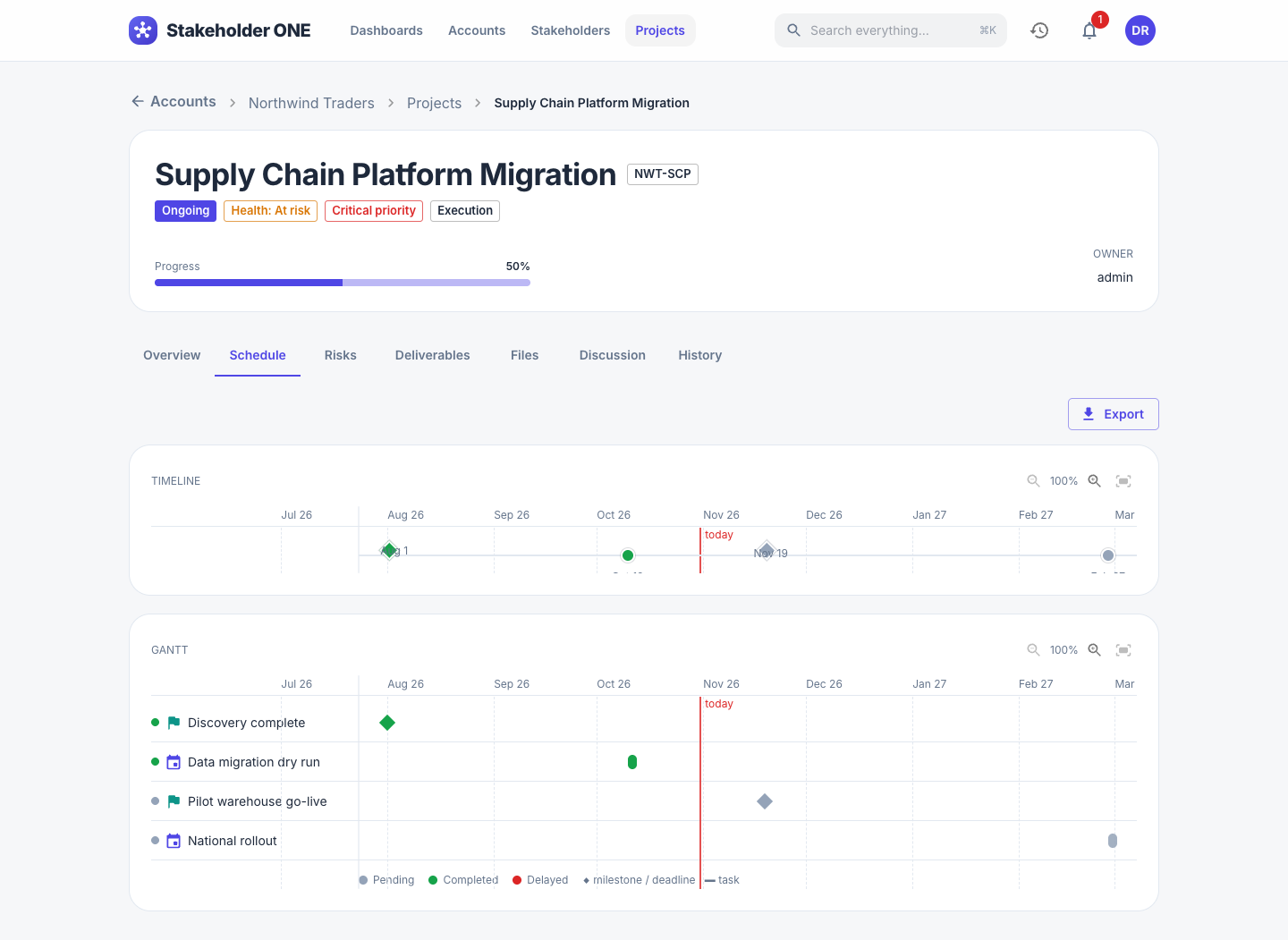
The Schedule tab of a project holds its plan: tasks, milestones, meetings and deadlines. It shows them on a Timeline and a Gantt chart, with a red line marking today.
Prerequisites
- Permission to edit the project, to add or change events. Anyone who can see the project can view and export its schedule.
- The project must not be Completed or On hold.
Event types
| Type | Use it for | Shown as |
|---|---|---|
| Task | Work that takes time. Has a Start date and an End date. | A bar |
| Milestone | A checkpoint, such as "Discovery complete". | A diamond |
| Meeting | A meeting or workshop on a date. | A marker |
| Deadline | A date something must be done by. | A diamond |
Each event has a status, shown by its color: Pending (gray), Completed (green) or Delayed (red).
Add an event
-
Open the project, and select the Schedule tab.
-
Select Add event.
-
Enter the following information:
Field Description Title What the event is. Required. Description Optional details. Type Task, Milestone, Meeting or Deadline. Start date (tasks) or Date When it starts or happens. End date For tasks, when the work should finish. Status Pending, Completed or Delayed. Assignee The user responsible. It appears in their My tasks on the dashboard. Depends on Another event that must finish first. -
Save.
To change an event, select it in the timeline or Gantt chart. To delete it, select Delete in the same dialog.
Read the timeline and Gantt chart
- Use the zoom buttons, or select Fit to window, to change the date range shown.
- In the Gantt chart, drag the edge of the task-name column to make it wider.
Export or import a schedule
- To export, select Export, and then select Export as CSV or Export as Excel (.xlsx).
- To import, select Import, and choose a .csv or .xlsx file with the same columns as an export: Title, Description, Type, Status, Assignee and the dates. After the import, a summary lists any rows that couldn't be imported and why.
Tip
To build a schedule in Excel, export the schedule of any project to get a file with the right columns, fill it in, and import it.
See progress on the burndown chart
The Overview tab shows a Burndown chart: the number of tasks, meetings and deadlines still open over time, against an ideal line. Milestones aren't counted.