Find your way around Stakeholder ONE
Updated October 30, 2026 · Applies to Stakeholder ONE 1.3
This article explains the parts of Stakeholder ONE you use every day: the top bar, search, notifications, and the lists of accounts, stakeholders and projects.
The top bar
| Item | What it does |
|---|---|
| Dashboards | Charts and summaries. See Use the dashboards. |
| Accounts | The organizations you work with. |
| Stakeholders | The people you work with. |
| Projects | Your projects. |
| Search everything… | Finds accounts, stakeholders and projects by name. |
| Clock icon | Recently viewed: the records you opened last. |
| Bell icon | Notifications: mentions and comments on your records. |
| Your avatar | Account settings, Recycle bin and Log out. Administrators also see the administration settings here. |
Search for anything
- Select Search everything…, or press ⌘K (Mac) or Ctrl+K (Windows).
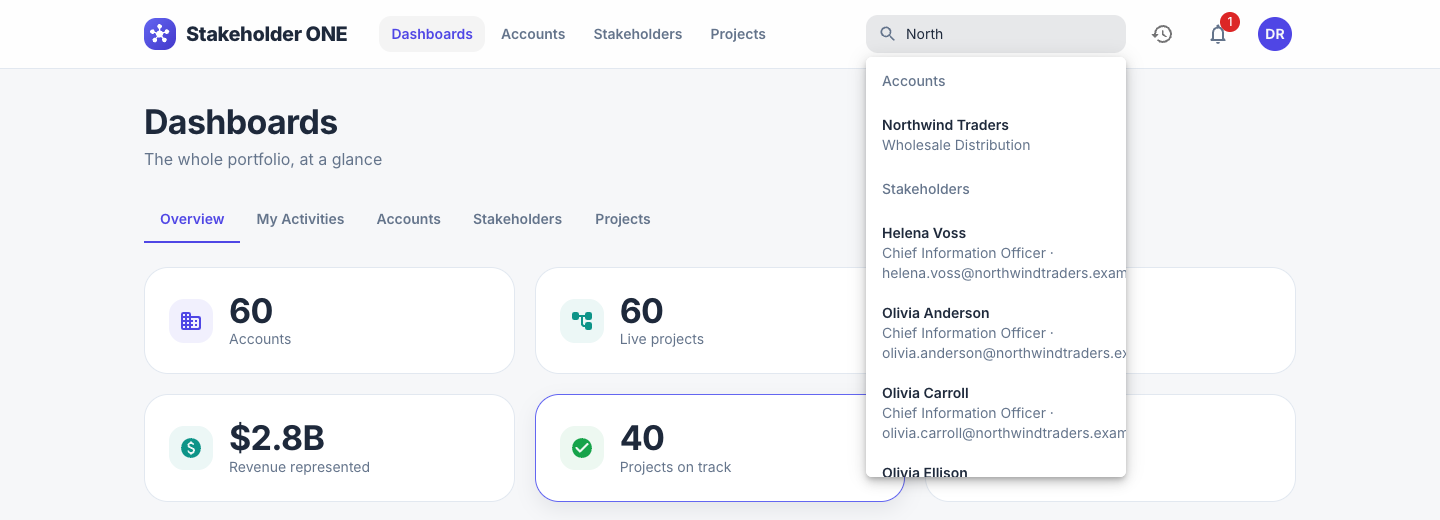
- Start typing a name. Results appear grouped by Accounts, Stakeholders and Projects.
- Select a result to open it.
Check your notifications
The bell shows a red badge with the number of unread notifications. You're notified when:
- Someone @mentions you in a discussion.
- Someone comments on a record you own.
Select the bell to see them, and select a notification to open the record. Select Mark all read to clear the badge. Notifications appear in the app only; they aren't emailed.
Work with lists
The Accounts, Stakeholders and Projects pages share the same tools:
- Search the list by name and other details.
- Filter with the drop-down lists next to the search box, such as Type, Status or Health. Select Clear all to remove filters.
- Sort by selecting a column heading in the table view, or with Sort by.
- Switch views between cards and a table with the buttons on the right.
- Export CSV downloads the records currently shown, with your filters applied.
Stakeholder ONE remembers the view you chose for each list in your browser.
Save a view
If you often use the same filters, save them as a view.
- Set the search, filters and sort order you want.
- Select Views, and then select Save current as new view….
- Enter a View name, and save.
Select Views to switch between your saved views, or All (no saved view) to go back to the full list. From the same menu, you can Rename or Delete a view, and share it with specific users or teams.
Reassign several records at once
If you're an administrator, select the checkboxes next to several records in the table view. A bar appears; select Reassign, choose the new owner, and confirm.