Manage risks
Updated October 30, 2026 · Applies to Stakeholder ONE 1.3
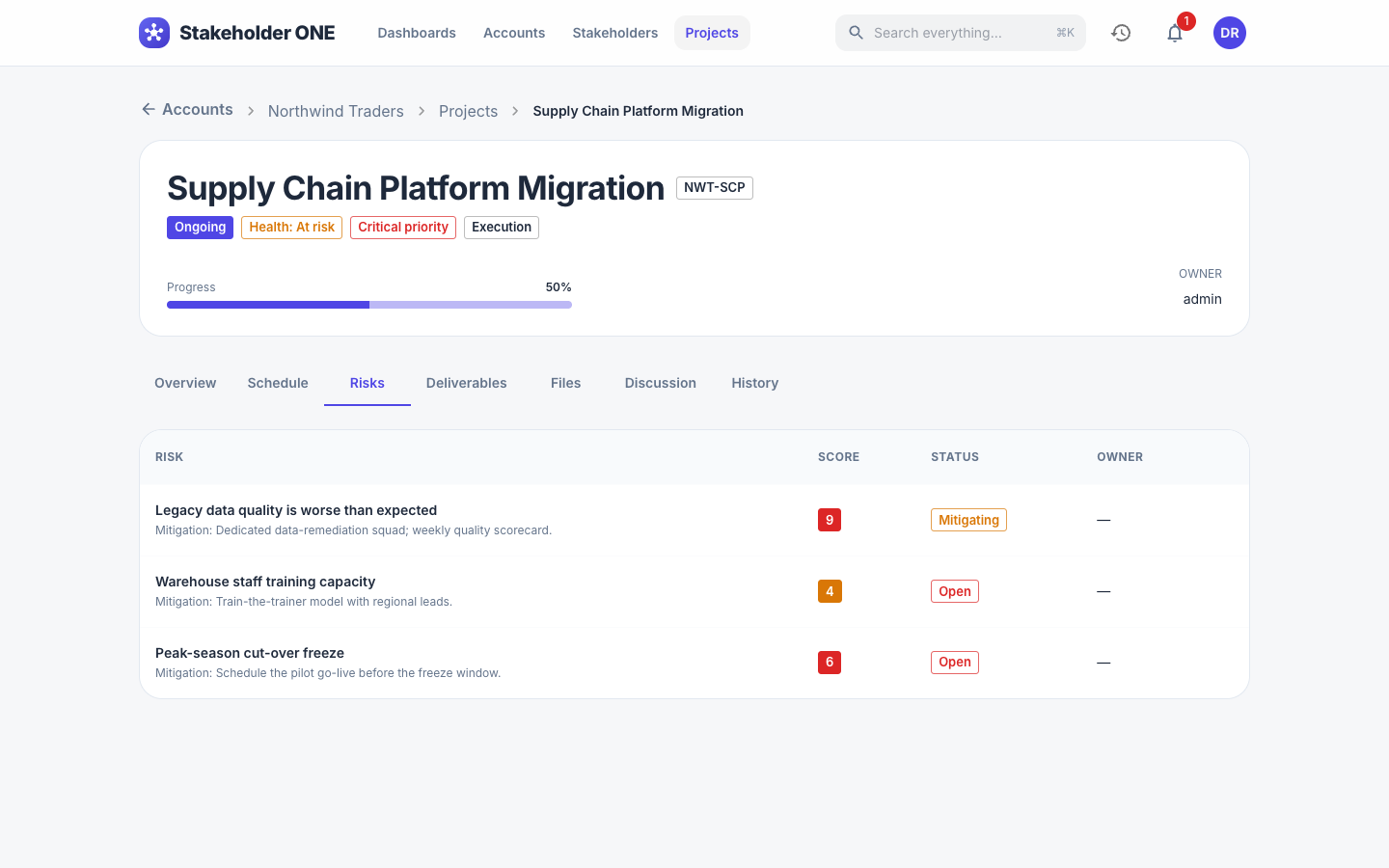
Use the Risks tab of a project to record what could go wrong, how likely and serious it is, and what you're doing about it.
Prerequisites
- Permission to edit the project, to add or change risks.
- The project must not be Completed or On hold.
How risks are scored
Each risk has a Likelihood and an Impact, each Low, Medium or High. Stakeholder ONE multiplies them (Low = 1, Medium = 2, High = 3) to get a Score from 1 to 9:
| Likelihood ↓ / Impact → | Low | Medium | High |
|---|---|---|---|
| High | 3 | 6 | 9 |
| Medium | 2 | 4 | 6 |
| Low | 1 | 2 | 3 |
Higher scores are shown in stronger colors, so the most serious risks stand out. The Projects dashboard shows a Risk heatmap of open risks across all projects.
Add a risk
- Open the project, and select the Risks tab.
- Select Add risk.
- Enter the Title, an optional Description, the Likelihood and Impact, the Mitigation (what you're doing to reduce the risk), the Status and the Owner.
- Select Save.
Track a risk
Update the Status as the risk develops:
| Status | Meaning |
|---|---|
| Open | Identified, and not yet being handled. |
| Mitigating | Actions are underway to reduce it. |
| Closed | It no longer applies. |
To change or delete a risk, select the pencil (edit) or trash (delete) icon on its row. Deleted risks go to the recycle bin.